
Use case walkthrough
Free & ProRun a cohort-based coaching program with Learnomy
You run a paid coaching program where a batch of students starts together, follows the same weekly schedule, and finishes together. Content unlocks on a calendar rather than all at once, part of the curriculum happens on a scheduled call rather than as pre-recorded video, and students expect to take notes, bookmark lessons, and ask questions as they go.
What you'll use
Cohorts (dates, seat cap, status)
Cohorts →Content Drip (unlock schedule)
Content Drip →Live lesson content type
Lesson Content Types →Lesson comments (Q&A)
Comment Settings →Notes and Bookmarks
Notes and Bookmarks →Pricing and access models
Pricing and Access Models →Full community (optional)
Community Companions →The walkthrough
Phase 1 - Decide how content unlocks, then create the cohort
Every course in Learnomy can pace itself one of three ways. This is the first decision to make before you build a coaching program, because it changes which tools you reach for.
Your options here:
- Open self-paced - set no drip rules and no cohort. Every lesson is available the moment a student enrolls, and they move through it on their own schedule. Pick this when the program has no shared calendar and students genuinely progress at their own pace.
- Drip-by-enrollment - set a Days after enrollment drip rule on each lesson (see Content Drip). A lesson unlocks N days after each student's own enrollment date, so two students who join a week apart see their own week 1, week 2, and so on on staggered calendars. Pick this for evergreen, always-open programs where students can start any day and you still want a paced structure.
- Cohort dates (fixed calendar) - set a Fixed date drip rule on each lesson so every student, regardless of when they joined, unlocks week 3 on the same day, and group students into a Cohort with a shared start date, end date, and seat cap.
A start-together, finish-together coaching program picks cohort dates. The batch needs to be in the same place in the curriculum at the same time, since the live sessions and group discussion only work if everyone is caught up together. Drip-by-enrollment cannot do this: it staggers each student's schedule individually, which is exactly wrong for a group that meets on the same weekly call.
Go to Learnomy > Pro Tools > Cohorts and click Add New. Fill in the fields:
- Cohort name - a label for this batch, for example "Fall 2026 Coaching Cohort".
- Course - the course this batch is grouped around.
- Start date and End date - the calendar dates the batch runs.
- Max students - the seat cap. The wp-admin form accepts 1-999.
- Status - Draft while you are still setting up, Open (accepting members) once you are ready to add students.
Click Save cohort. The batch appears in the cohort table immediately, and a public cohort landing page is created at
/cohorts/{id}/showing the linked course, the dates, and the seat count.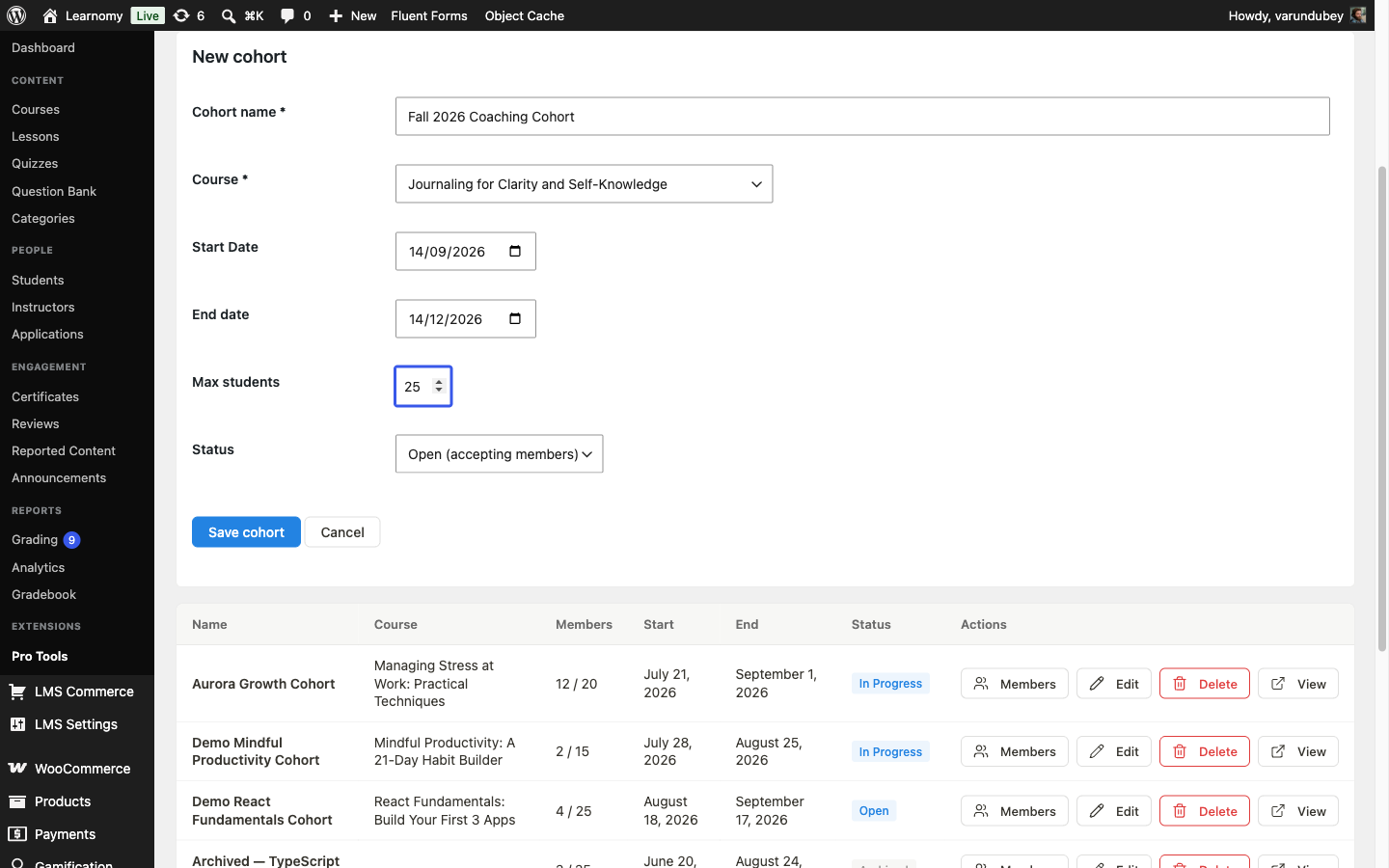
New cohort form filled in with a name, course, start date, end date, max students, and status set to Open, with the existing Aurora Growth Cohort visible in the table below it Once the cohort is Open, add students one at a time by email from the cohort's Members view. Adding a student enrolls them in the linked course automatically and records the cohort ID on their enrollment, so you can filter and report on the batch as a group. There is no bulk CSV import for cohort members in this release; add students one at a time by email. See Cohorts for the full member-management walkthrough.
Phase 2 - Schedule the weekly unlocks and the live sessions
Go to Learnomy > Pro Tools, click the Content Drip card, select your cohort's course, and click View schedule. Set a Fixed date rule on each lesson you want to release on a specific week, leaving lessons with no rule available immediately (typically your first week's content, so day one has something to open). On the model site's cohort course, week 1's lessons carry no rule (immediate), and the following weeks are dated a week apart:
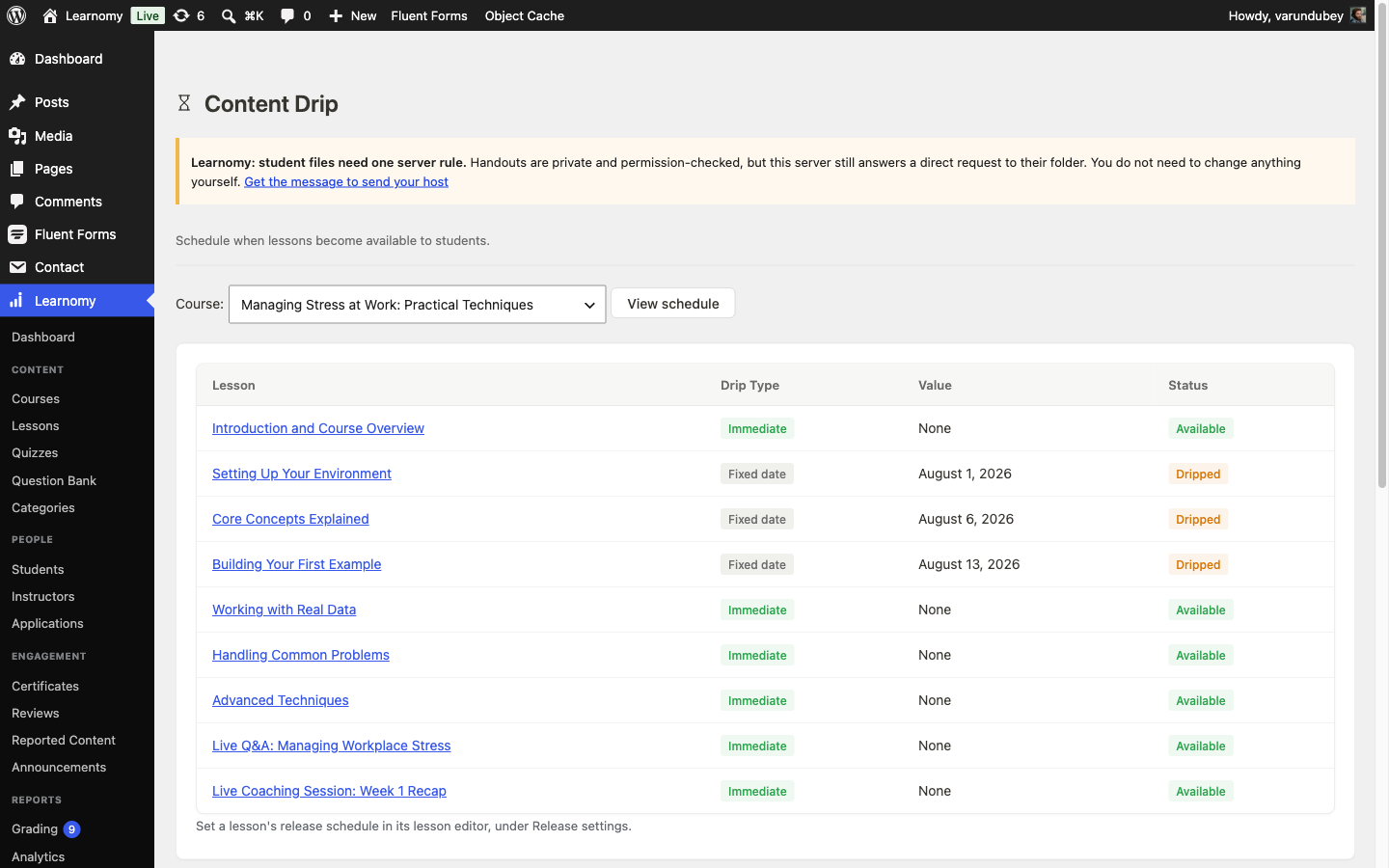
Content Drip schedule for Managing Stress at Work: Practical Techniques, showing Setting Up Your Environment dripped August 1, Core Concepts Explained dripped August 6, and Building Your First Example dripped August 13, roughly a week apart Drip rules are set over the REST API (
POST /learnomy-pro/v1/courses/{id}/drip-rules); there is no bulk-assign tool in the admin view, so schedule a multi-week program with a scripted loop rather than one lesson at a time. See Content Drip.For the part of your curriculum that happens live, on a call rather than as pre-recorded content, add a lesson and set its Content Type to Live. A live lesson has three dedicated fields, in the lesson editor and over the REST API:
- Join link - where the session happens. Learnomy stores this link but does not create the room itself.
- Starts at - when the session happens. Do not confuse this with the Schedule card's Available date, which is the drip field from step 3 and answers a different question (when the lesson unlocks, not when the call happens). Setting the live start there locks the lesson instead.
- Runs for (minutes) - how long the Join now button stays enabled, counting from Starts at. Leave it blank for a 60-minute default.
Learnomy does not create the Zoom, Google Meet, or Teams room for you. Set up the call yourself in whichever tool you already use, then paste the join link into the lesson. Learnomy's job is scheduling the lesson around that link and showing students the right state before, during, and after the call, not hosting the video call itself.
The model site's cohort course carries two live lessons this way: a coaching-session recap early in the cohort, and a live Q&A later in the week, each with its own join link, start time, and 45-minute duration. See Lesson Content Types.
Phase 3 - What the cohort student sees
Log in as a student enrolled in the cohort and open the course. A lesson whose drip date has not arrived shows a lock icon in the curriculum, and opening it directly shows the exact unlock date rather than a bare "come back later":
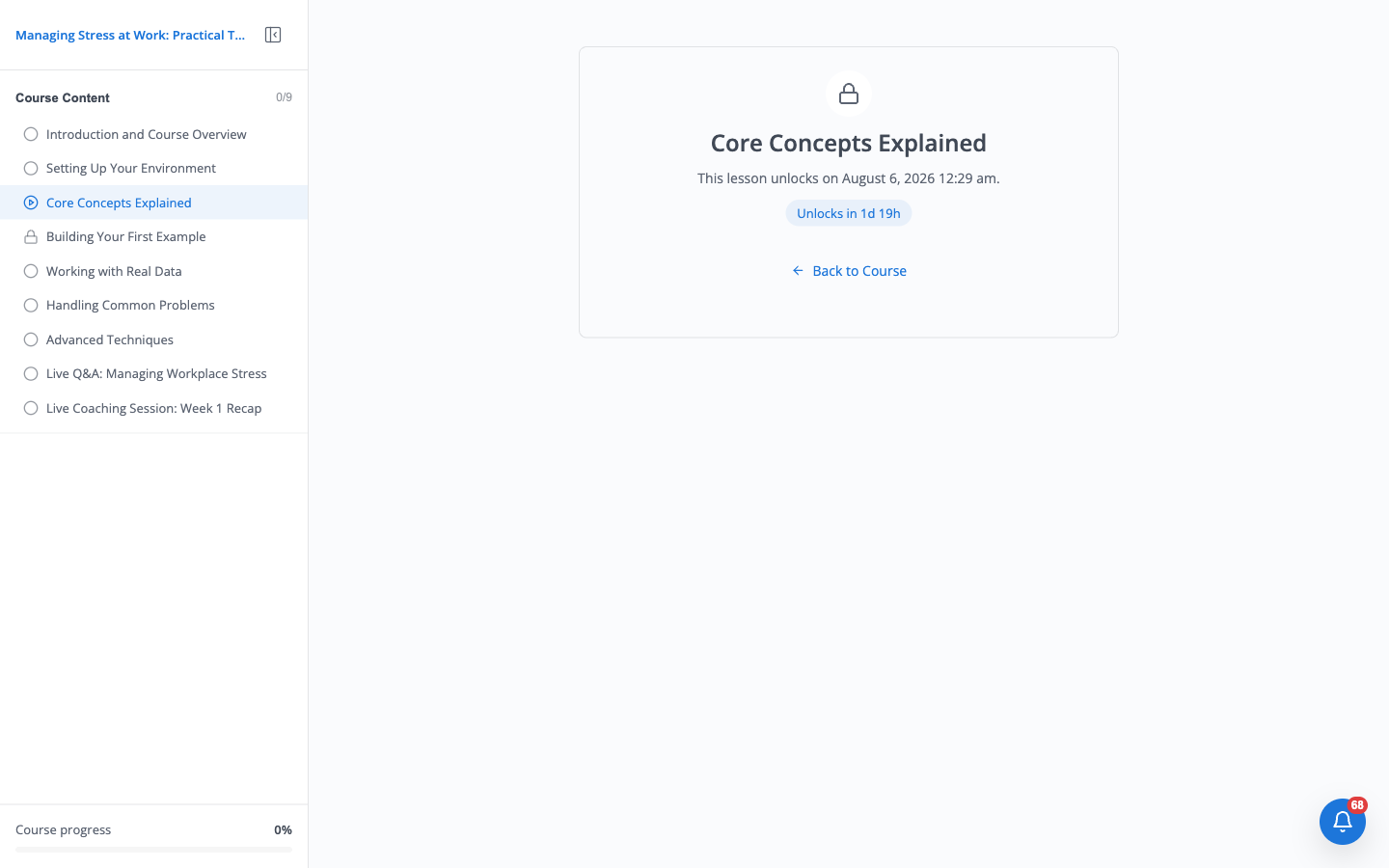
Locked lesson page for Core Concepts Explained showing a lock icon, "This lesson unlocks on August 6, 2026 12:29 am", and an "Unlocks in 1d 19h" badge Open a live lesson before its start time. The player shows a countdown and a disabled Join now button rather than letting the student click through to nothing:
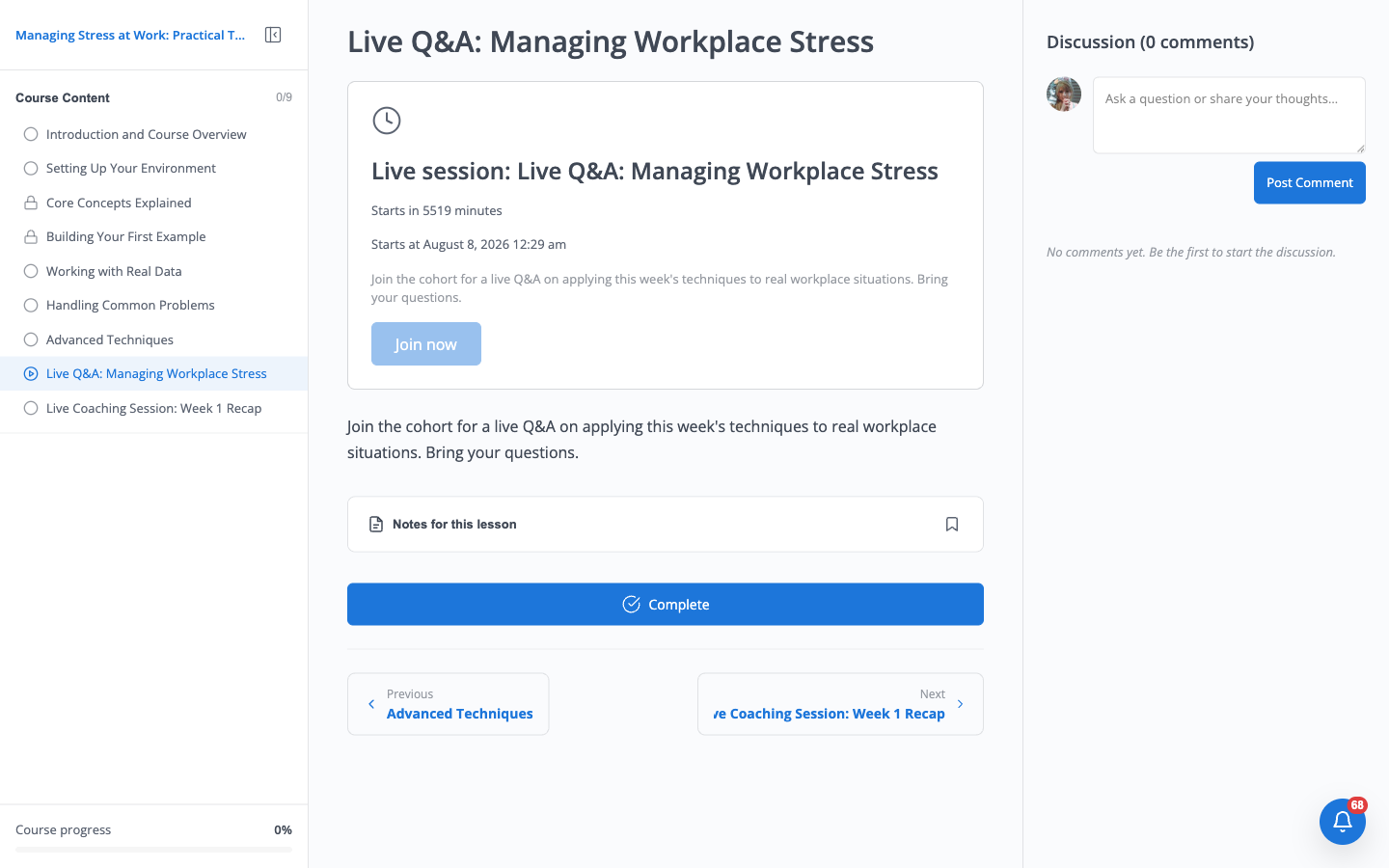
Live lesson page in the pre-session state, showing "Starts in 5519 minutes", "Starts at August 8, 2026 12:29 am", and a disabled Join now button The countdown is expressed in raw minutes rather than converted to hours or days once the number gets large; a session several days out reads as "Starts in 5519 minutes" rather than "in 3 days, 19 hours". The Starts at line underneath states the same time in plain language, so read that line when the minute count is unwieldy.
Once the session's start time arrives, the same page flips to a Live now state with a real, enabled Join now link that opens the call in a new tab. This window stays open for whatever you set Runs for to (45 minutes on the model site's live lessons); after that it flips again to Live session ended. To capture this state without waiting for the real start time, we set the lesson's start time back five minutes so the session was already under way, took the screenshot, then restored the original scheduled time exactly:
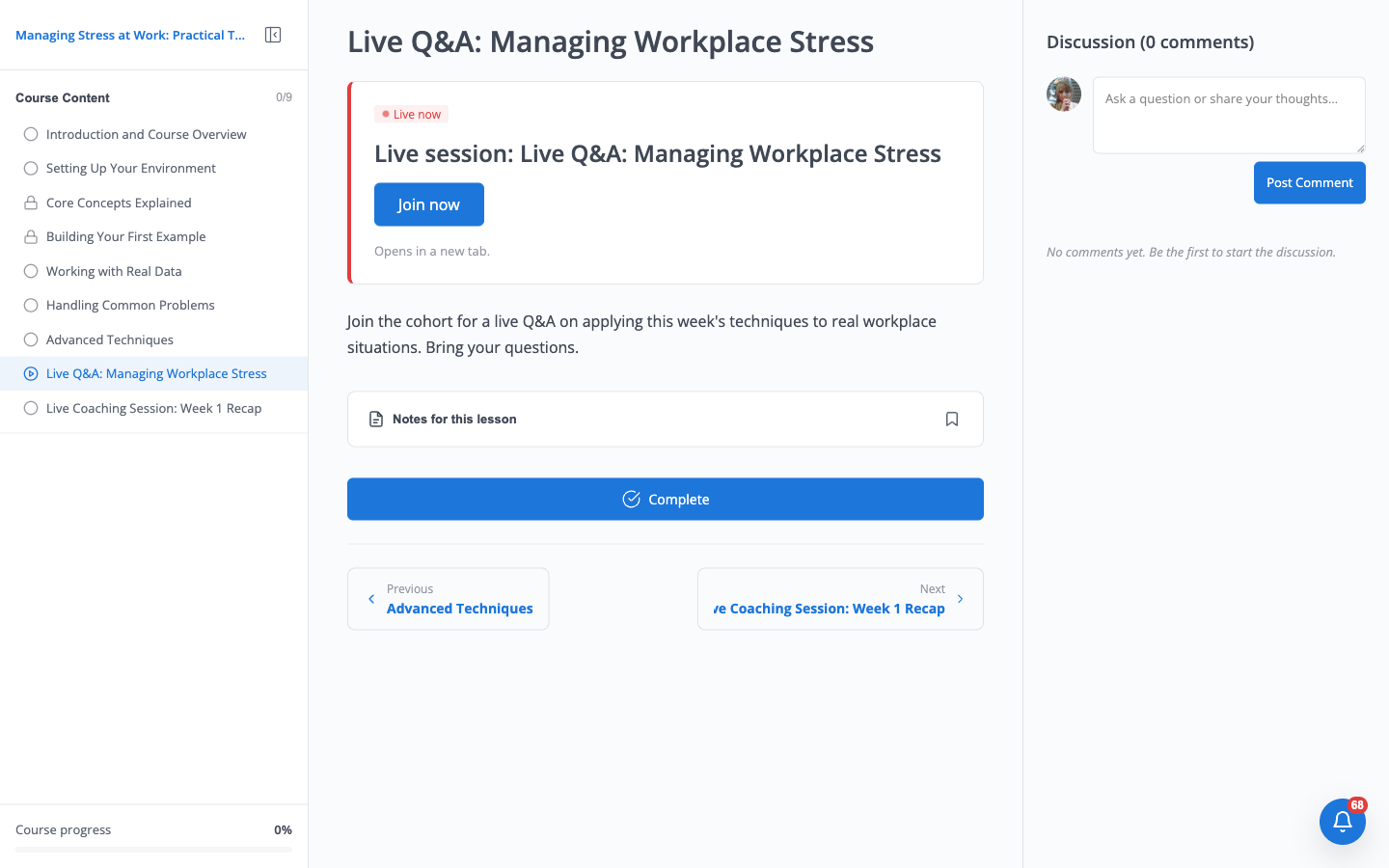
Live lesson page in the live state, showing a red "Live now" badge and an enabled Join now button that opens in a new tab
Phase 4 - Engagement: notes, bookmarks, and Q&A
Every enrolled student gets a personal notes panel and a bookmark toggle on each lesson, private to them and never shared with other students or the instructor. Open Notes for this lesson under any unlocked lesson to write a note, tag it, or toggle the bookmark:
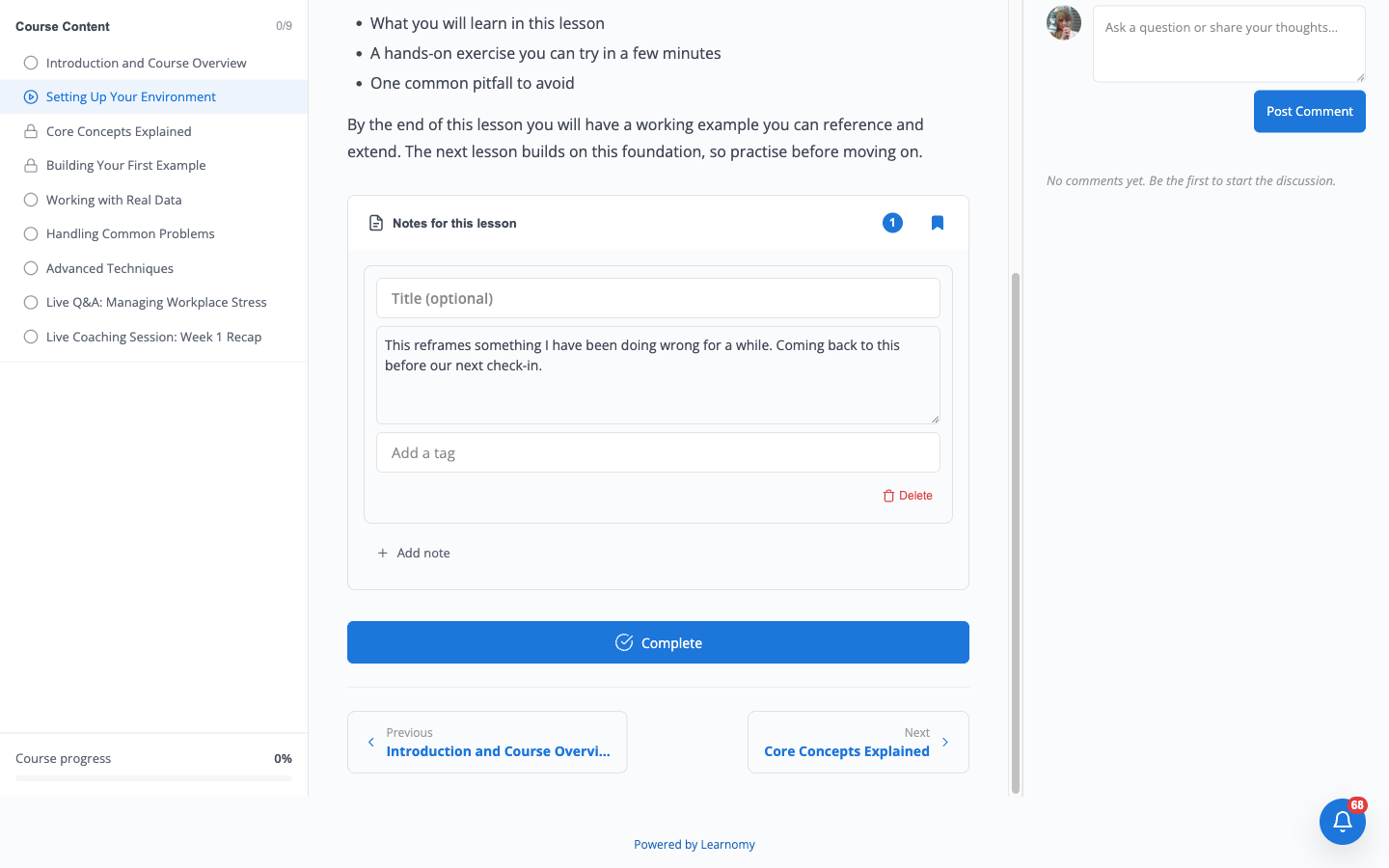
Notes panel expanded on the Setting Up Your Environment lesson, showing one saved note, a tag field, an Add note action, and an active blue bookmark toggle This is a Pro extension, off by default until you enable it from LMS Settings > Modules. See Notes and Bookmarks.
For questions and discussion, Learnomy gives you two levels, and which one a cohort program needs depends on how much social space the program requires beyond one lesson at a time.
Your options here:
- Lesson comments (built into Free) - a comment thread under each lesson, one per lesson, enabled site-wide from LMS Settings > Courses > Enable Lesson Comments. A student asks a question directly under the lesson it is about, and the thread lives right there. See Comment Settings.
- A full community (BuddyNext or Jetonomy, companion plugins) - activity feeds, direct messages, groups, and notifications that persist across the whole program rather than one lesson at a time. Pick this when your cohort needs a shared social home, not just per-lesson comment threads, for example a members' area where the batch keeps talking between live sessions. See Community Companions.
A cohort coaching program typically starts with lesson comments, since most student questions are genuinely about the lesson they are on, and adds a full community only once the cohort format itself becomes the product (alumni networks, ongoing peer discussion, direct messaging).
A student's question posts straight to the lesson's Discussion panel. Opening the same lesson as the instructor shows the same thread, with Reply, Report, and Block actions on each comment:
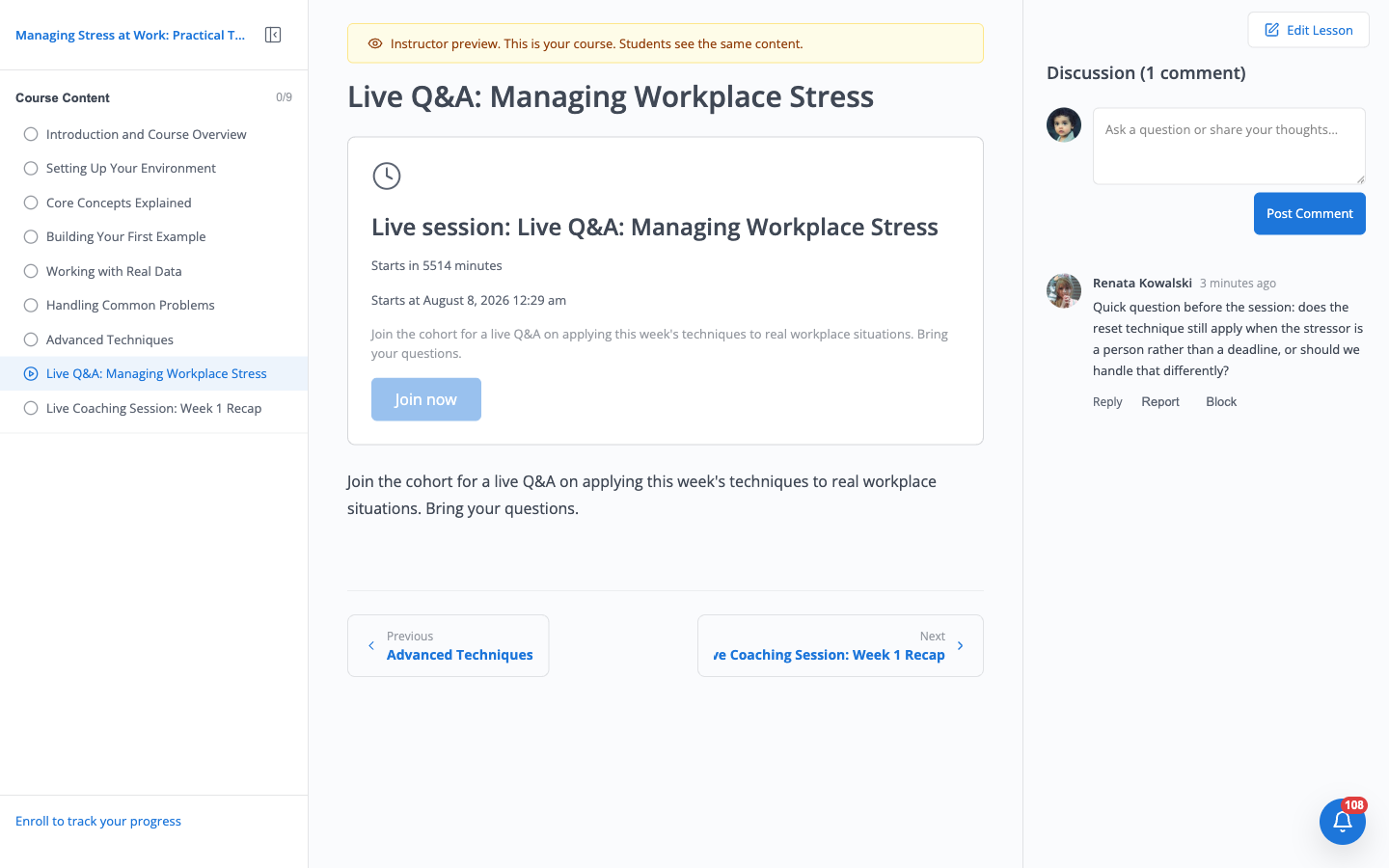
Instructor previewing the live Q&A lesson, showing "Discussion (1 comment)" with Renata Kowalski's question and Reply, Report, and Block actions underneath it Replying from here posts a threaded reply tagged Instructor, visible to the whole class right under the original question:
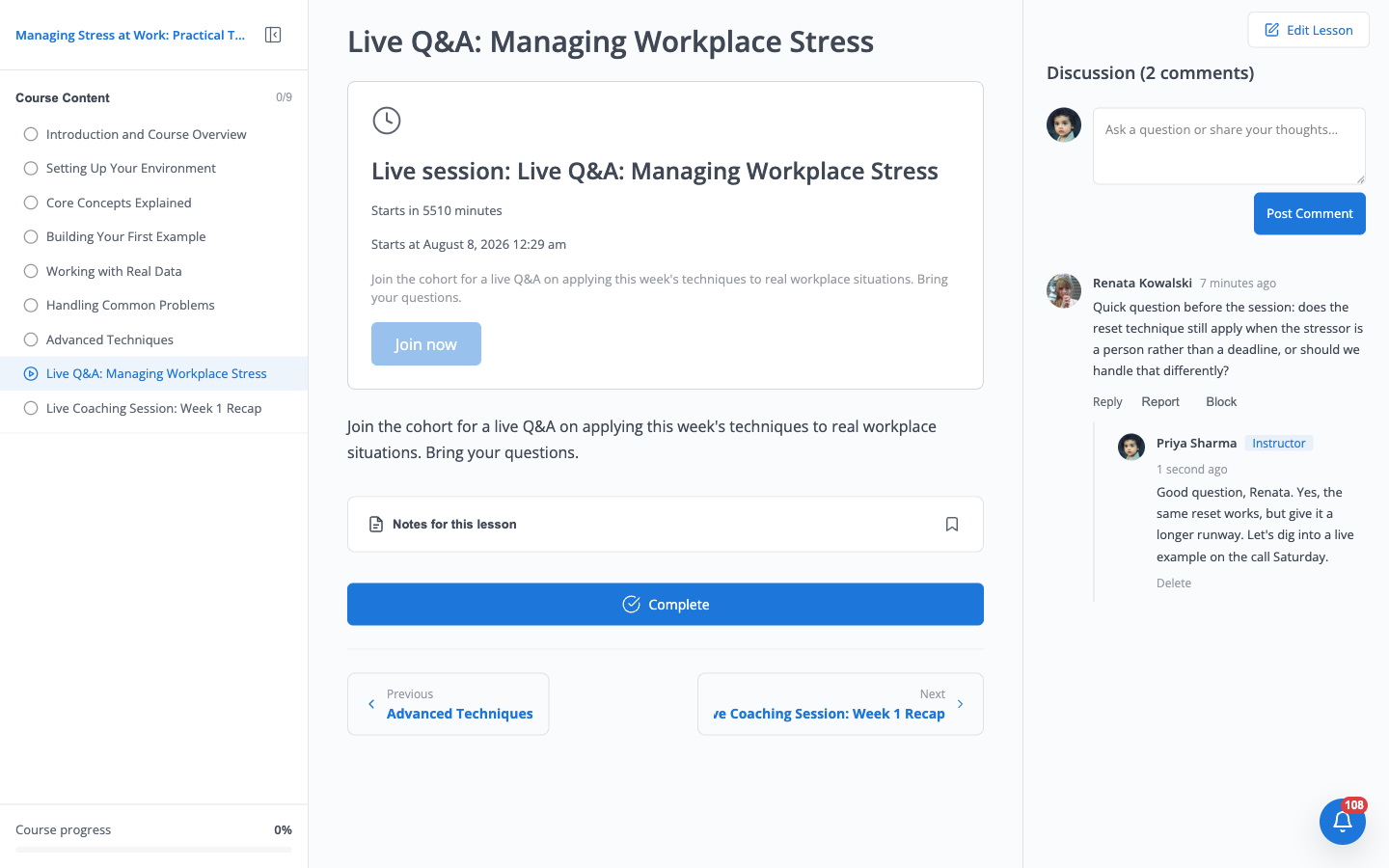
Same lesson after the instructor replies, showing the threaded reply from Priya Sharma tagged Instructor directly under the student's question Finding from this capture: replying only works once the instructor also has enrollment or membership access to their own course. The reply endpoint's permission check is the same one used for students (
access_course: an active enrollment or membership on the course), and course authorship alone does not satisfy it. We confirmed this two ways on the model site: the instructor's own reply 403'd (learnomy_forbidden) while merely authoring the course, and posting the same reply succeeded immediately after we enrolled the instructor in their own course, then reverted that enrollment afterward so the model site's seeded numbers stay accurate. Until this is addressed, an instructor who wants to answer questions from the lesson page itself should enroll in their own course. There is also no aggregated "Student Q&A" inbox anywhere in the current build to browse pending questions across your courses in one place; a dashboard widget for exactly this (Learnomy\Services\Dashboard_Widget_Registry, idqa-inbox) exists in the codebase, registered under a "Students" rail section, but no route currently renders that section, so the widget never appears. Answering students today means opening each lesson individually.
Verify it works
Log in as a cohort student and open Managing Stress at Work: Practical Techniques. Core Concepts Explained, the third lesson, shows a lock icon in the curriculum; opening it directly states the exact unlock date and a live countdown badge rather than a bare "locked" message.
Open Live Q&A: Managing Workplace Stress, the upcoming live lesson. It shows Starts in [n] minutes, the exact start date and time, and a disabled Join now button.
Open Live Coaching Session: Week 1 Recap, the earlier live lesson. Its scheduled time has passed, so it shows Live session ended and a disabled Session ended button instead of a join link.
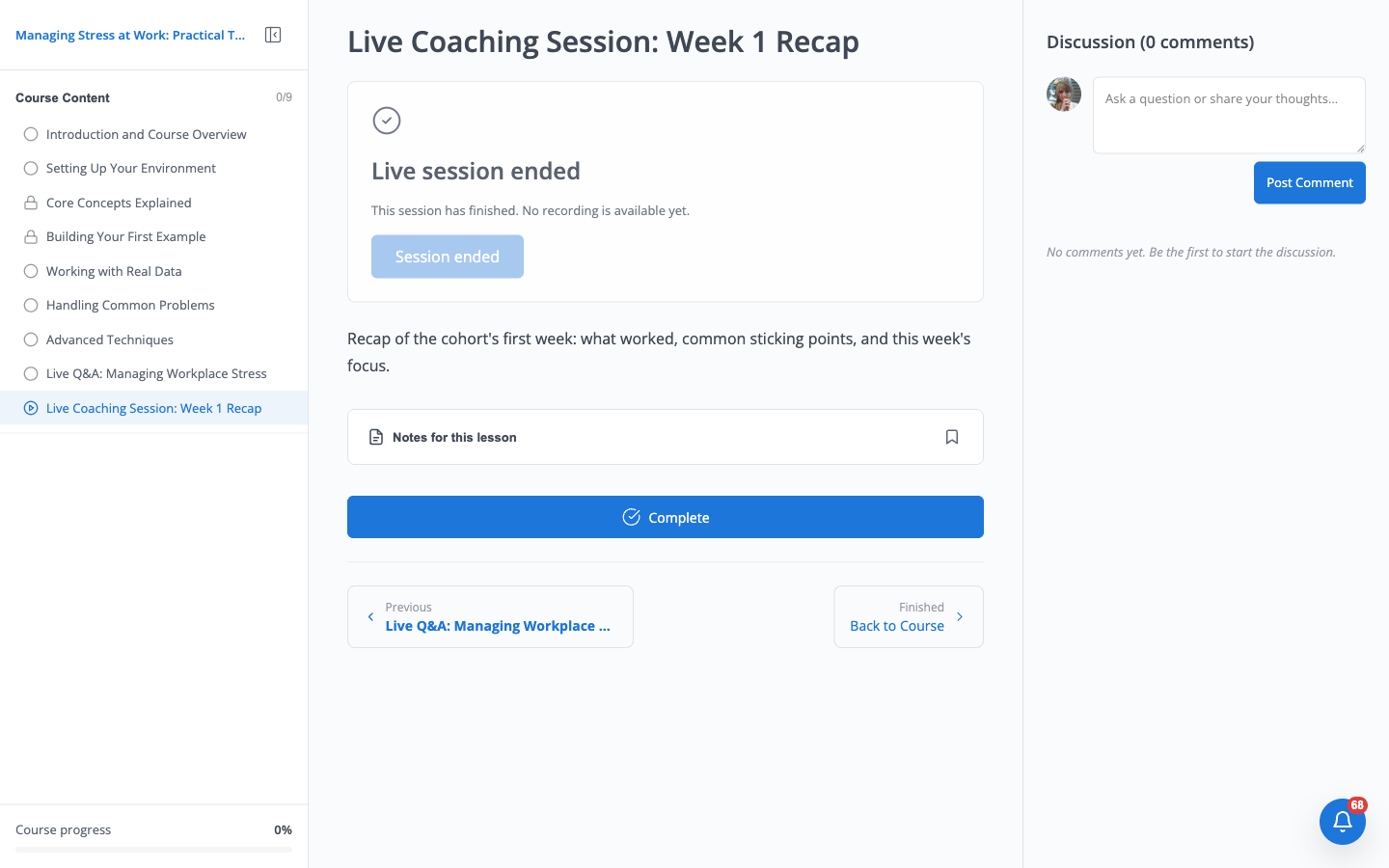
Live Coaching Session: Week 1 Recap in the post-session state, showing "Live session ended", "This session has finished. No recording is available yet.", and a disabled Session ended button
On the model site this was exercised end to end on the "Aurora Growth
Cohort" (id 8907), mid-flight against Managing Stress at Work: Practical
Techniques, instructor Priya Sharma:
started July 21, 2026, ends September 1, 2026, 12 of 20 seats filled,
status In Progress. Its week-3 lesson stayed locked with a real future
unlock date throughout this capture. The two live lessons kept their
seeded schedule for the whole walkthrough, except for a five-minute window
where we set the upcoming lesson's start time into the past to capture the
Live now join-button state; we restored the original timestamp
(2026-08-08 00:29:10 UTC) immediately after, byte-for-byte, confirmed by
re-reading the row.
Keep reading
Build this on your own site
Everything above runs on your WordPress server. Start with the free plugin; add Pro when a step here needs it.