
Use case walkthrough
Uses Pro featuresRun a corporate internal training portal with Learnomy
You run learning and development for a company, and you are training your own staff, not selling to the public. Nobody pays for anything: you provision accounts, staff learn, and your job is proving who finished what. Different departments need different mandatory training, and someone occasionally goes on leave and needs their access paused rather than deleted.
What you'll use
Private site
General Settings →Spaces
Spaces →Space Groups and scoped managers
Space Groups →CSV roster import
Spaces →Invite-only courses
Invite-Only Courses →Suspend and resume a member
Spaces →Space owner reports and CSV export
Spaces →SCORM packages
SCORM Packages →The walkthrough
Phase 1 - Set up
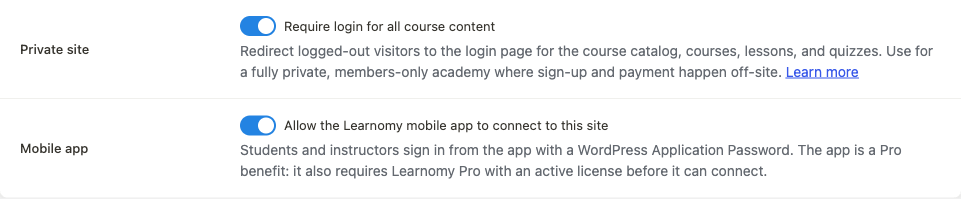
Go to LMS Settings > Settings and open the Access Control card. Deciding whether the whole academy needs to sit behind a login is your first call:
Your options here:
- Private site (site-wide toggle) - turn on Private site and every logged-out visitor is redirected to the login page for the catalog, every course, every lesson, and every quiz. One switch, no per-course setup, and nothing is ever visible to someone outside the company.
- Invite only, per course - leave Private site off and set each course's own pricing model to Invite only (you add the students) instead. The catalog and course pages can stay public if you want people to know the course exists, but nobody can buy it, self-enroll, or see a price. See Invite-Only Courses for the full detail, or Invite-Only Classroom for a dedicated guide that walks the whole model end to end.
A corporate training portal almost always wants Private site. Staff training is not marketing content, an outsider finding the catalog is not a goal, and a single toggle is far less to maintain than remembering to set every course's pricing model correctly. Turn it on and save.
Private site toggle in the Access Control card Go to Learnomy > Pro Tools > Spaces and open your company's space, or create one with Add new if you have not yet. On the model site this is Aurora Corp L&D, owned by Kai Tanaka, with 18 members and a 50-seat limit. The space detail page shows three tabs (Members, Courses, Groups), each with a live count, plus a link to Export reports (CSV) and the public page.
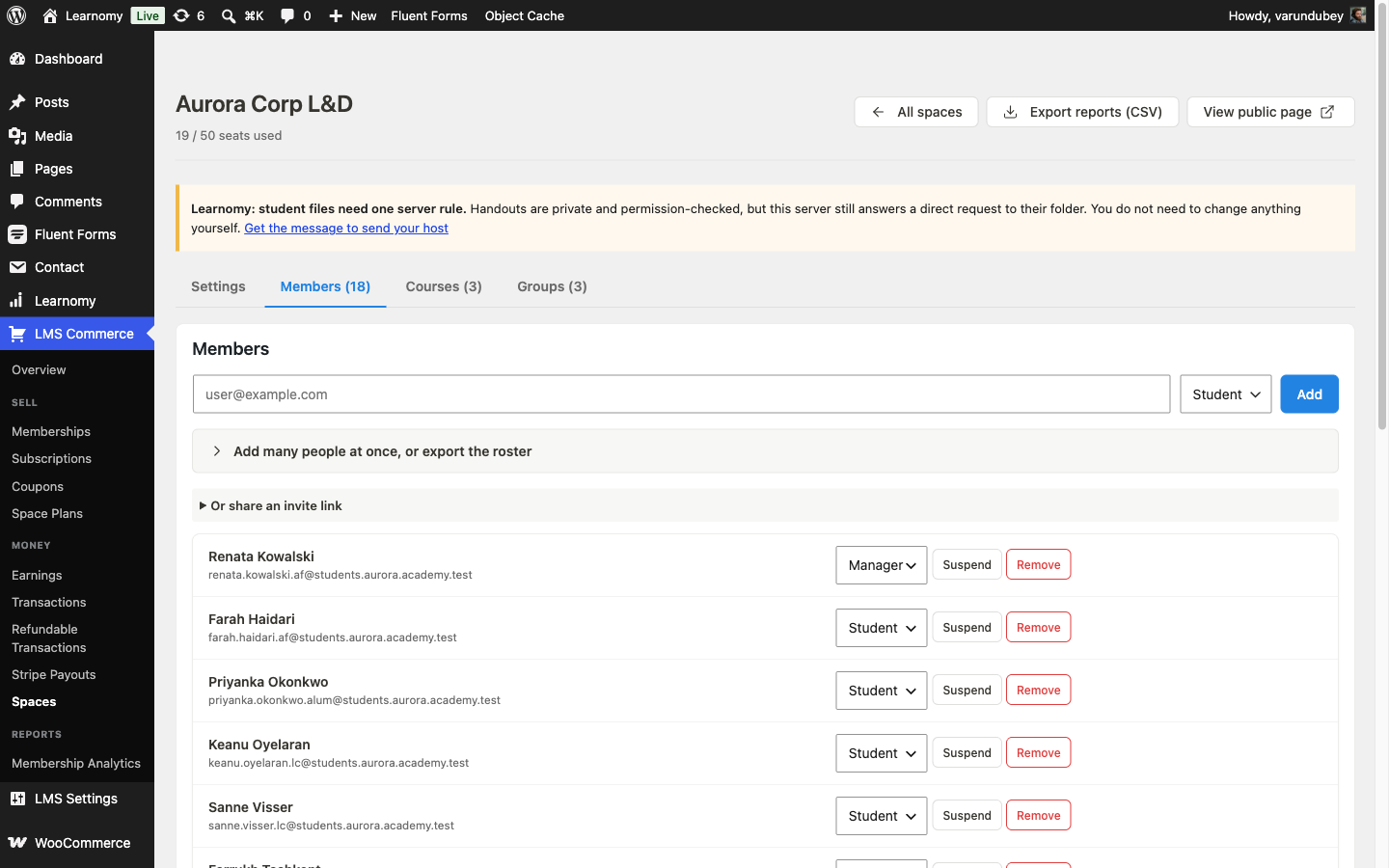
Aurora Corp L&D space overview: header, tabs, and member roster Decide how staff get into the space. There are three ways in, and you can combine them:
Your options here:
- CSV import - open Add many people at once, click Sample
CSV to download a template with
First Name,Last Name,Emailcolumns, fill it in, and Load a CSV. Since 1.9.0 the importer builds each new account's username and display name from the first and last name column, so "Dana Whitfield" becomesdana.whitfieldinstead of a username derived from her raw email address. This is the option to use for a real HR roster: the names end up readable everywhere WordPress shows a username, not just on the CSV. - Bulk add by pasting addresses - in the same Add many people at once panel, paste email addresses instead of loading a file, one per line or comma-separated. Faster for a short list, but any new account is provisioned from the email address alone, so the username is less readable. Good for adding a handful of people quickly; use the CSV for a full department roster.
- Invite link - open Or share an invite link and copy the 7-day signed link. Anyone who clicks it can log in or create an account and joins the space themselves, without you touching the member list at all. Good for self-service onboarding once someone already knows they are supposed to join, less good when you need every seat filled by a specific date.
Aurora Corp's L&D team uses the CSV for the initial roster load - accurate names matter for a compliance audit trail - and keeps the invite link handy for new hires who join between HR batches.
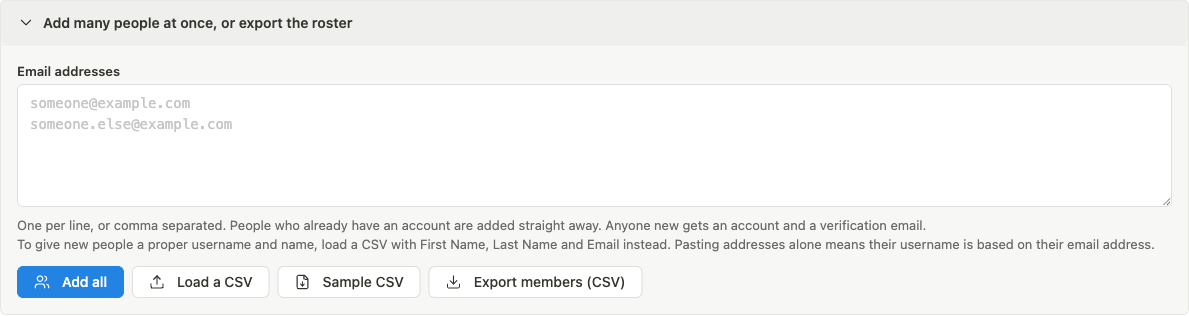
CSV import panel with Sample CSV and Load a CSV - CSV import - open Add many people at once, click Sample
CSV to download a template with
Split the space into groups that match your departments. On the Groups tab, click Add group for each one; Aurora Corp L&D runs three: Engineering, Sales, and Compliance. Add each department's staff to their group, then promote one person per group to group manager so they can run their own department's roster and courses without touching anyone else's. On the model site, Renata Kowalski manages Engineering, Tobias Lindgren manages Sales, and Amara Nwosu manages Compliance - each sees only their own group when they open the manage page, and cannot see or touch the other two departments' members, courses, or reports.
Group managers who are themselves enrolled as students is expected behavior, not a bug: Renata is both Engineering's manager and a working engineer who takes the same training as her team.
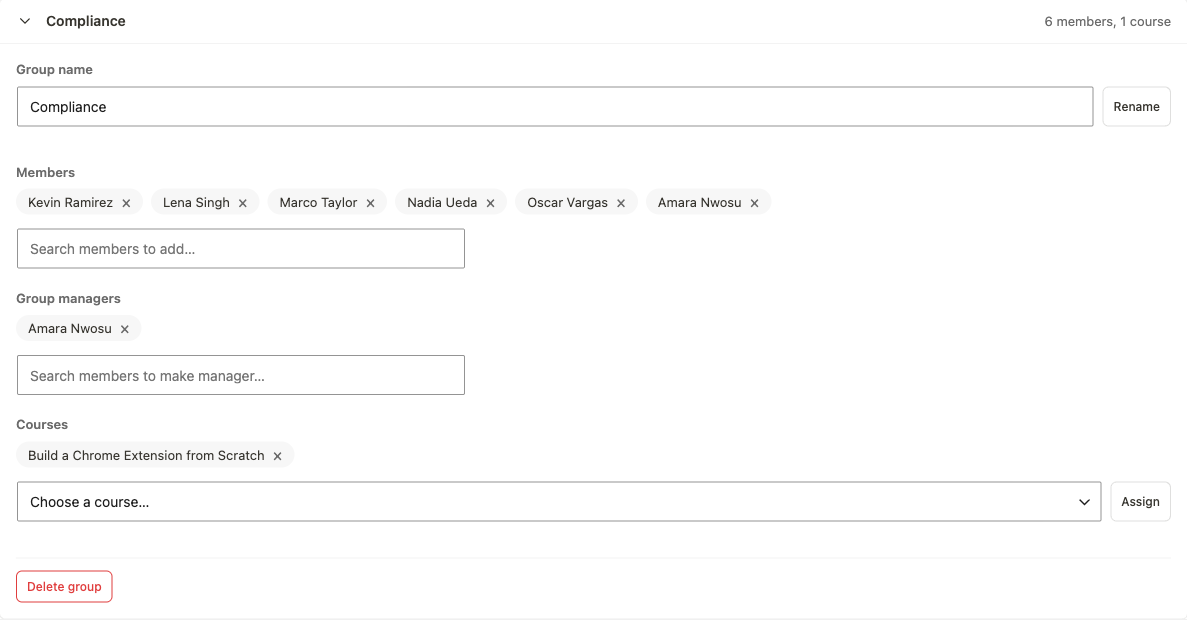
Compliance group expanded, showing its members and its group manager
Phase 2 - Assign courses and lock them down
Decide how each course reaches its audience:
Your options here:
- Space-wide - assign the course to the space with the default Everyone in the space access scope. Every member gets it, regardless of group. Right for training everyone needs: a code of conduct, a security awareness refresher, an all-hands product overview.
- Group-exclusive - on the space's Courses widget, switch the course's access scope to Specific groups only and assign it to one or more groups. Only members of those groups receive it. Right for department-specific training: Engineering does not need the Sales playbook, and Sales does not need a security code review course.
Aurora Corp L&D runs every one of its three courses group-exclusive: Engineering owns "JavaScript Fundamentals," Sales owns "CSS Layout Mastery," and Compliance owns "Build a Chrome Extension from Scratch" as its mandatory course.
A group-exclusive assignment controls automatic enrollment through the space, not the course's own front door. If the course's own pricing model is Free or a normal paid model, anyone signed in can still find it in the catalog and self-enroll directly, whether or not they are in the right group, whether or not the space suspended them. Group scoping alone is a routing convenience: it decides who gets added automatically, not who is allowed in. To actually lock a course to space or group membership, also set its pricing model to Invite only (nobody can buy or self-enroll; the space or group grant is the only door) or Members only. See Pricing and Access Models for the full enumeration of all eight models.
When someone leaves the company or goes on unpaid leave, open the space's Members tab and click Suspend on their row instead of removing them.
Your options here:
- Suspend a member - pauses one person. They keep their role, join date, and place in any groups, but every course the space or a group granted them is closed until you resume them. Reversible at any time.
- Remove a member - deletes the membership record outright. Their tenure and role are gone for good; re-adding them later starts fresh.
- Deactivate the whole space - set the space itself to Inactive from the spaces list when the whole account stops (an unpaid invoice, a department shutting down), rather than suspending each member one at a time.
On the model site, Meike Bergman (Sales) is suspended: her row carries an amber Suspended badge and a Resume action in place of Suspend.

Meike Bergman's row with the amber Suspended badge
Phase 3 - Test it as a student
Log in as a Compliance-group member who is active and open "Build a Chrome Extension from Scratch," Compliance's mandatory course. A non-preview lesson opens normally with a Mark lesson complete button, because his space membership auto-enrolled him through the Compliance group.
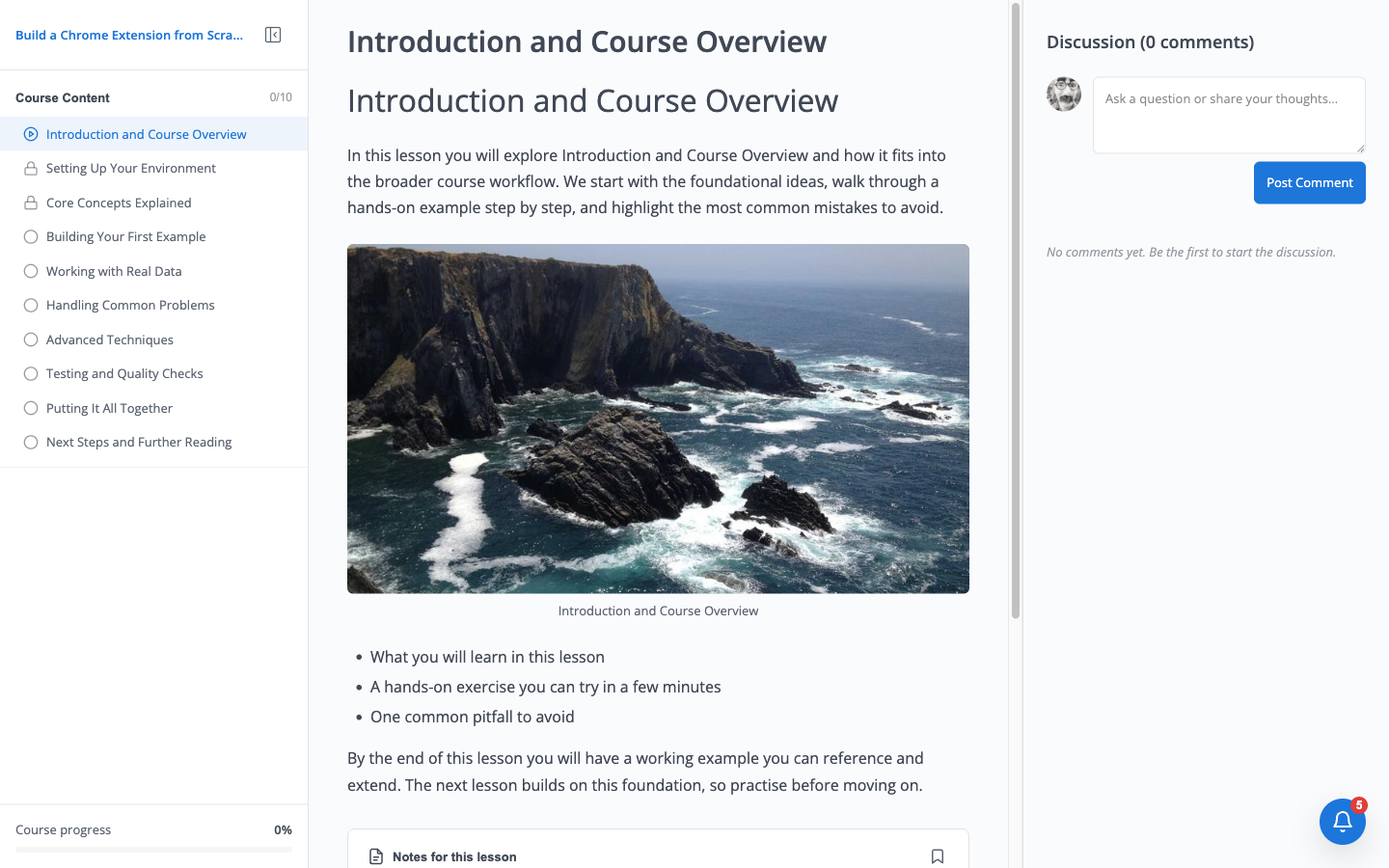
Kevin Ramirez viewing a lesson in the Compliance mandatory course, with Mark lesson complete visible Log in as the suspended member and open a non-preview lesson in her own group's course. Learnomy shows an Enrollment Required page instead of the lesson: her space-granted enrollment was canceled the moment she was suspended, and Free-priced preview content aside, the rest of the course is closed to her.
Phase 4 - Track completion
Open the space owner's self-service dashboard at
/learning-spaces/<slug>/manage/(or click View public page, then Manage if you own the space) and decide how you want to consume the completion numbers:Your options here:
- View in the dashboard - scroll to Reports. It breaks enrollments and completions down by course; since every course here is scoped to exactly one group, that reads as a per-group breakdown too - 12 enrollments in Engineering's course, 15 in Sales', 18 in Compliance's, 45 total, 7.2% average progress.
- Export CSV - click Export CSV on the same widget to download the identical breakdown as a spreadsheet, useful for an HR audit trail or a compliance sign-off you need to keep outside the LMS.
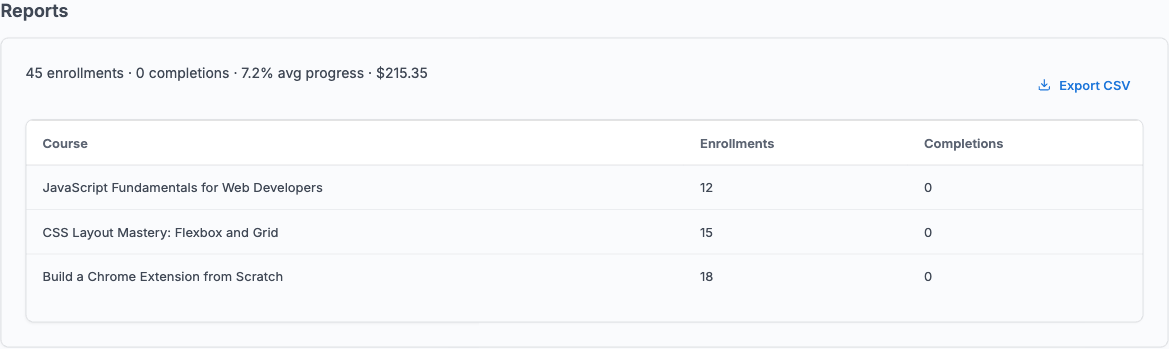
Reports widget on the space owner dashboard, broken down by course 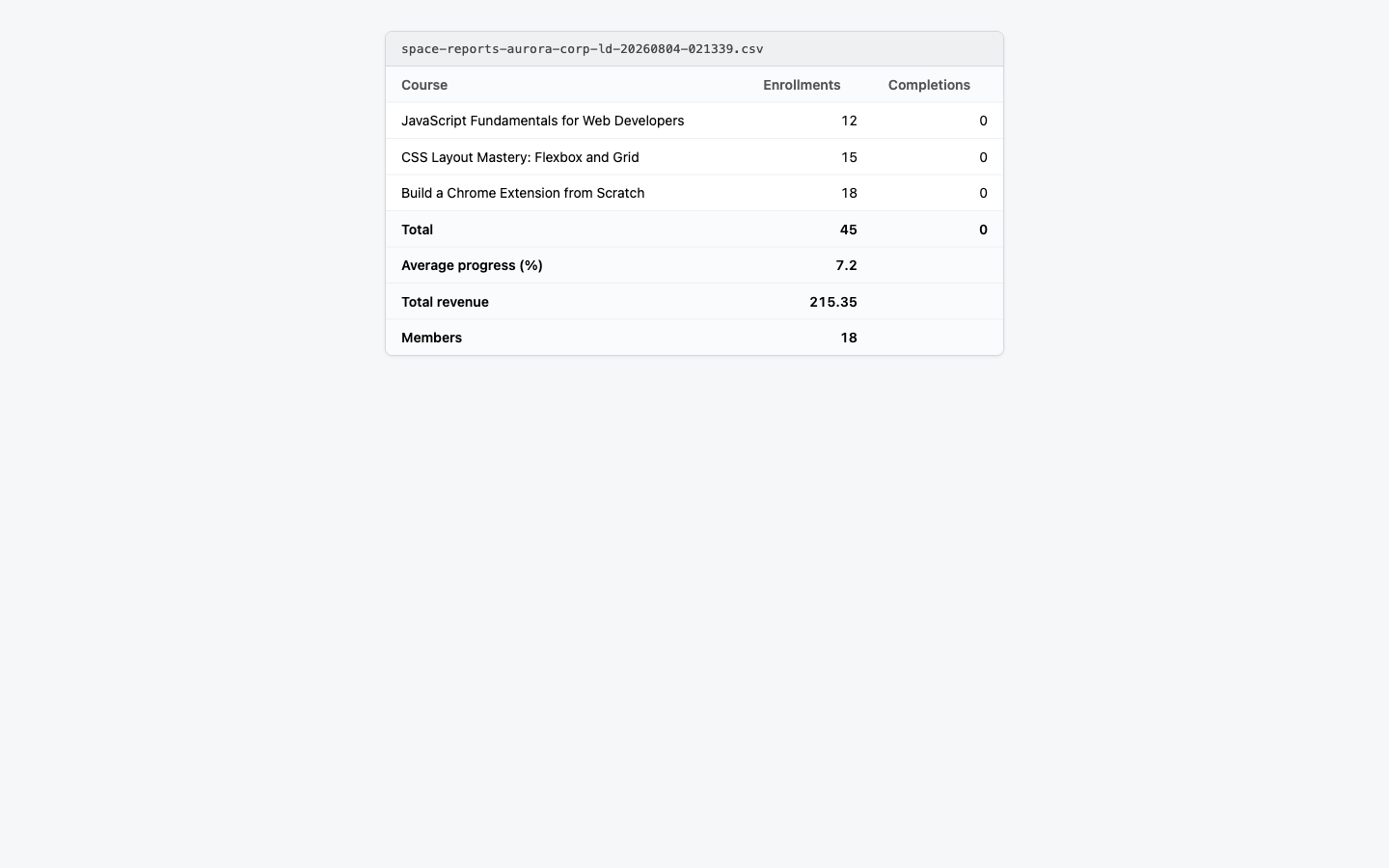
The exported reports CSV opened as a table If your compliance training was authored outside Learnomy - in Articulate Storyline, Adobe Captivate, or a similar tool - upload the exported package as a SCORM lesson instead of rebuilding it. Enable the SCORM module first at LMS Settings > Modules, then set the lesson's content type to SCORM and its completion mode to Auto: SCORM / standards package so a learner cannot mark it complete until the package itself reports a passing status. See SCORM Packages.
Verify it works
- Log in as a test account (Kevin Ramirez, Compliance) and open "Build a Chrome Extension from Scratch." A later lesson (for example "Handling Common Problems") loads with full content and a Mark lesson complete button, since his group membership granted him an active, space-sourced enrollment.
- Log in as a test account (Meike Bergman, suspended) and open the same kind of non-preview lesson in her own group's course. Learnomy shows Enrollment Required and a View Course & Enroll link instead of the lesson, because suspension canceled her space-sourced enrollment.
- As the admin, open the space's Members tab and click Resume on Meike's row, confirming Restore access?. Her enrollment flips back to active immediately and her join date does not change - suspension pauses tenure, it does not reset it. This guide's capture pass resumed her to prove the restore, then suspended her again immediately afterward so the model site's seeded state - Meike suspended - is unchanged for the next reader.
On the model site this was exercised end to end: Kevin Ramirez (Compliance,
active) reached his group's mandatory course and its lesson content; Meike
Bergman (Sales, suspended) was refused a non-preview lesson in her own
group's course with an Enrollment Required page; resuming her restored active
status with her original join timestamp (2026-08-04T00:29:06Z) intact, and
suspending her again returned the space to its seeded state.
Keep reading
Build this on your own site
Everything above runs on your WordPress server. Start with the free plugin; add Pro when a step here needs it.