
Use case walkthrough
Free plugin onlySwitch to Learnomy from another LMS
You already run an academy on LearnDash, Tutor LMS, or LifterLMS, and you want to move to Learnomy without starting over. Your courses, lessons, and quizzes exist somewhere else, your students are already enrolled, and some of them have finished lessons or entire courses. Rebuilding all of that by hand is not an option, and re-enrolling students from zero would erase progress they earned. You need the content and the people to arrive together, on the same site, in one pass you can preview before you commit to it.
What you'll use
Import wizard
Migrating from Another LMS →WP-CLI migration commands
Migrating from Another LMS →Course builder
Creating a Course →Sections and lessons
Sections and Lessons →Question types
Question Types →Managing students
Managing Students →Certificates
Certificates →Pricing and access models
Pricing and Access Models →The walkthrough
Phase 1 - Choose your source and what to bring
Keep your existing LMS plugin active. The import reads live from it while it runs and never modifies or deletes anything there, so your current site keeps working throughout.
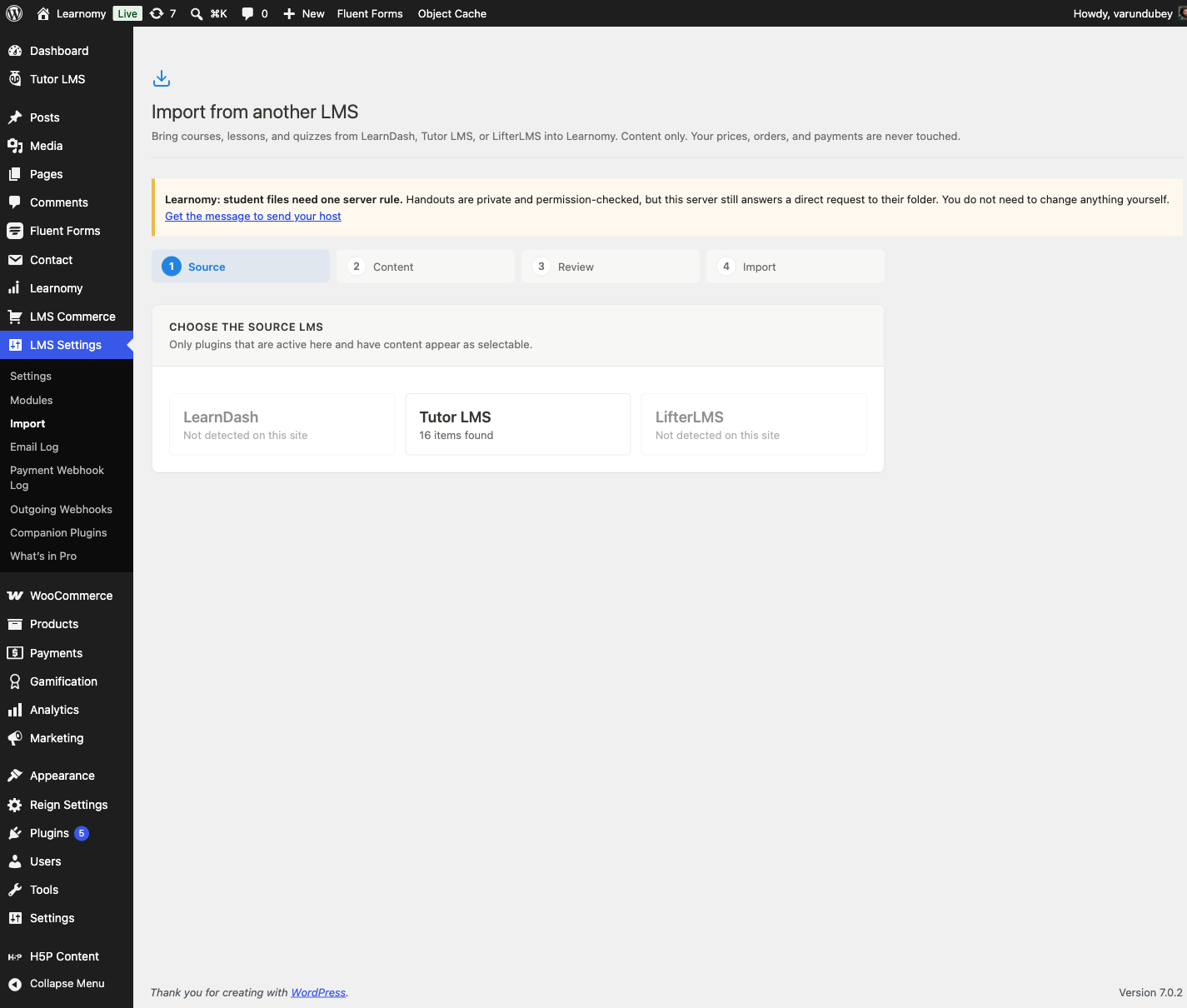
Go to LMS Settings > Import. The wizard lists the three LMS plugins it knows how to read from and shows which ones it can see on this site right now:
Your options here:
- LearnDash - selectable when LearnDash is active and has at least one course. LearnDash is the only source with a third content level: lessons can have their own sub-lessons (LearnDash topics), and quizzes attach to a specific lesson.
- Tutor LMS - selectable when Tutor LMS is active and has at least one course. Tutor's quizzes attach to a course's topic as a sibling of its lessons, not to one specific lesson, so they arrive in Learnomy filed under the course with no section and show under "Ungrouped" in the course builder. Drag each one into the right section afterward.
- LifterLMS - selectable when LifterLMS is active and has at least one course. LifterLMS has a flat lesson structure (no sub-lessons, unlike LearnDash) and its quizzes attach to a specific lesson, the same as LearnDash.
A source that is installed but inactive, or has no courses, is shown as unavailable and cannot be selected. Pick the plugin you are moving away from.
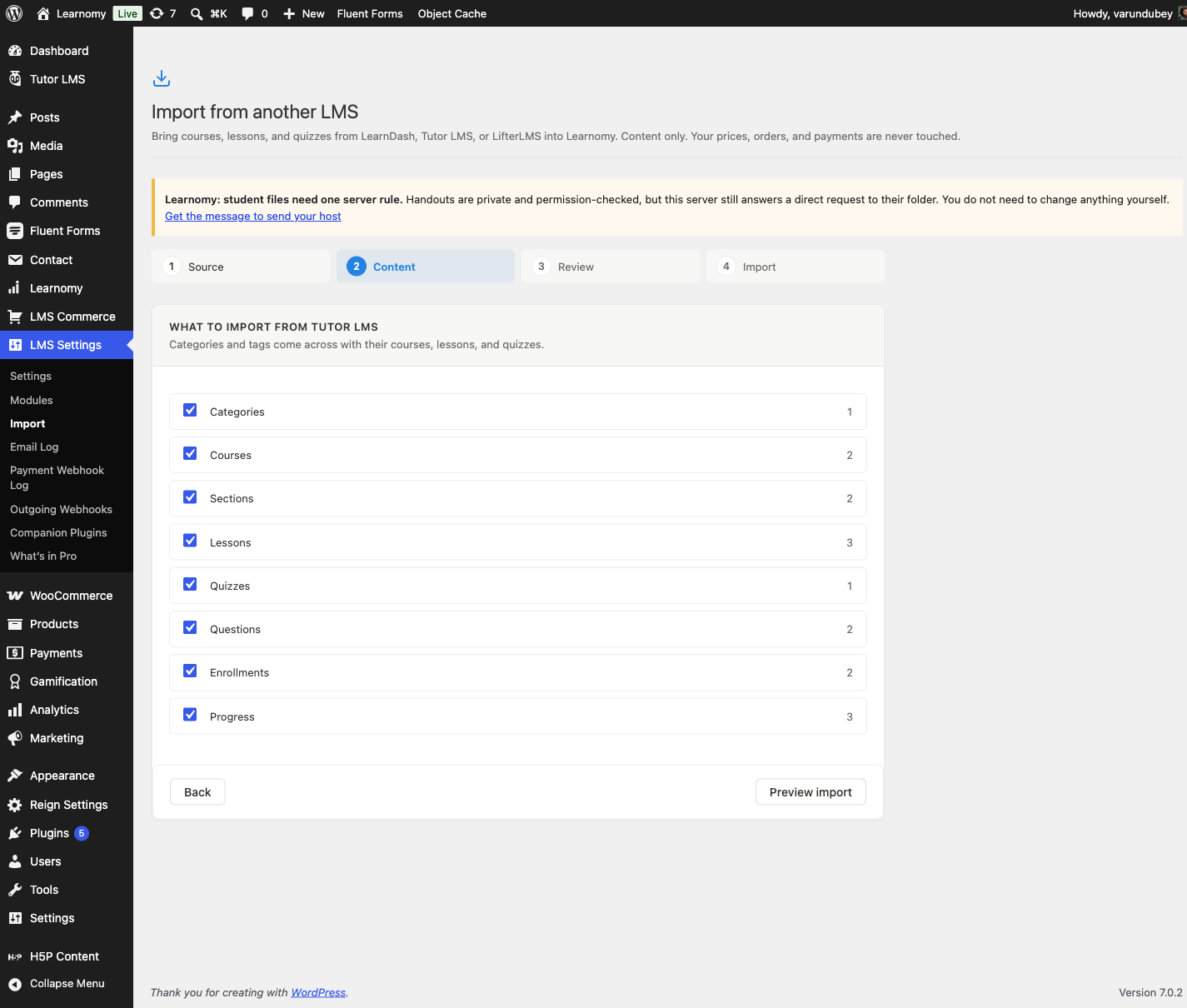
Import wizard source selection step listing LearnDash, Tutor LMS, and LifterLMS The wizard shows a checklist of everything that source has, each with a count: categories, courses, sections, lessons, quizzes, and questions, plus Enrollments and Progress. This is the real decision point in the whole migration, because it decides whether your students arrive with you or start over:
Your options here:
- Content only - leave Enrollments and Progress unchecked. Only the course material comes across (categories, courses, sections, lessons, quizzes, questions). Pick this when you are rebuilding your catalog on a new site and plan to enroll students fresh, or when your student list on the old system is stale and you would rather start clean.
- Content plus Enrollments, no Progress - check Enrollments and leave Progress off. Every currently-enrolled student keeps access to the course the moment the import finishes, but every lesson shows as not yet started. Pick this when you are relaunching a course and want a clean completion record without forcing students to buy access again.
- Content plus Enrollments plus Progress (full move) - check both. Students keep their access and their completed lessons, and a student who had finished a course arrives already marked complete. This is the option a live production migration almost always wants, because nobody has to redo work they already did. It is what this guide walks.
Both boxes are checked by default.
Content selection step showing item checklist with Enrollments and Progress toggles checked
Phase 2 - Preview the dry run
Click Preview import. This runs a dry run: it counts exactly what will be created and writes nothing to your database yet. Always look at this screen before you click Start import, for two reasons. First, the counts confirm the wizard found everything you expected; if a number looks low, check whether that source only counts published items, and publish or reveal any draft content you want brought across first. Second, the dry run lists every question-type warning: a source question type that has no exact Learnomy equivalent gets downgraded to the closest type it can (for example, image-based questions become plain short-answer or multiple-choice, since the image itself does not carry over) or is skipped entirely when there is no sensible target, and each downgrade or skip is named before you commit to it. The command-line equivalent is
wp learnomy migrate preview <source>, andwp learnomy migrate run <source> --dry-rundoes the same check from the run command. Nothing here is optional to look at: the dry run is the only point where you see the exact result before it is real.The review also states plainly what the import never brings across, on every run, regardless of your selection: certificates (no source LMS exposes a reliable per-course certificate flow to carry over), per- question quiz scores from past attempts (a learner who passed is marked complete, but the graded detail behind that pass is not reconstructed), and anything to do with money (pricing, coupons, and orders stay in your existing system; every imported course arrives free). If the counts and warnings look right, click Start import.
Phase 3 - Run the import
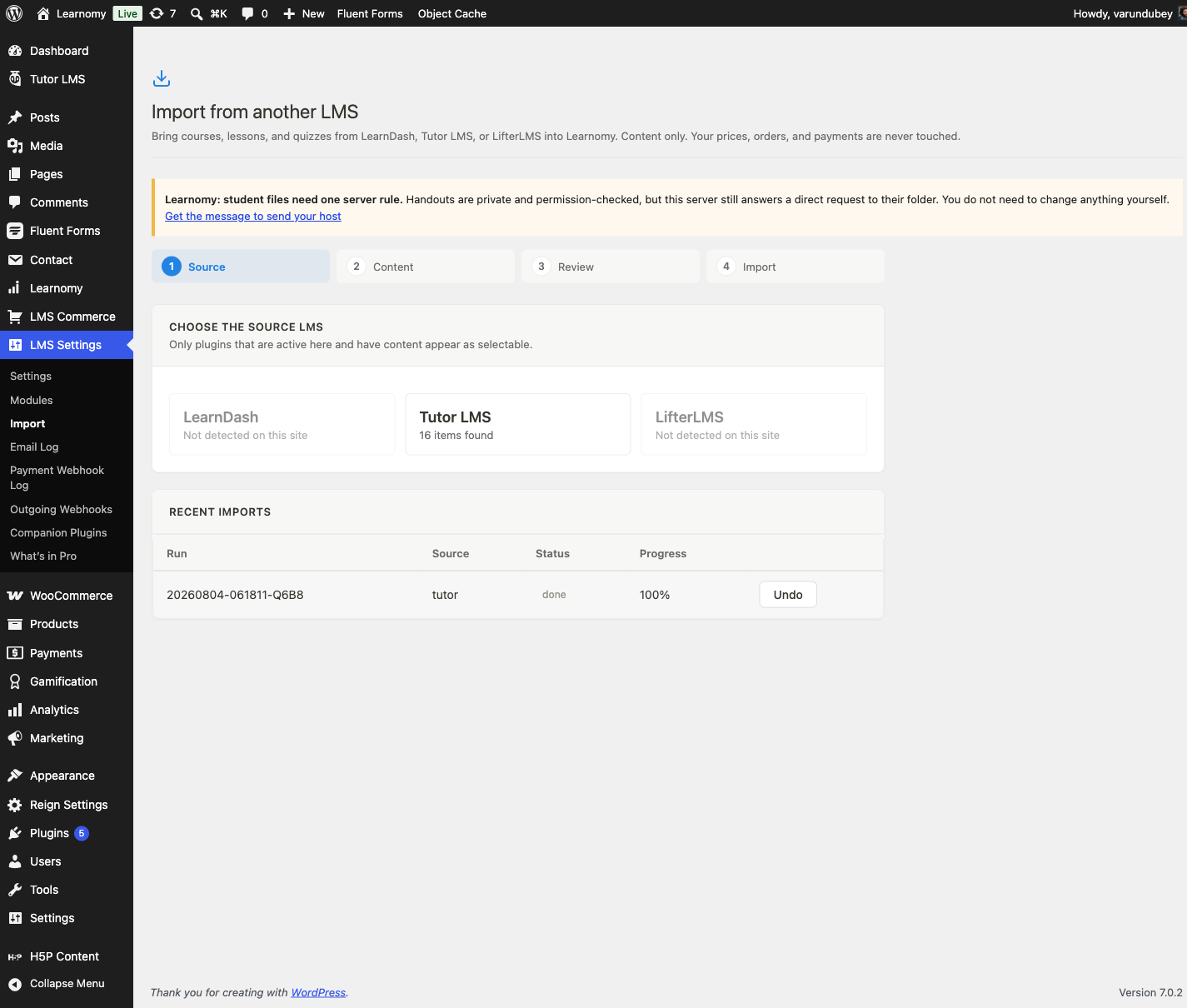
The import runs in resumable batches in the background, 50 items per batch, so a large library does not time out a single page request. The wizard polls and shows a live percentage with a per-type breakdown of items created, updated, and skipped as each batch completes. It is also idempotent: an item already imported is skipped rather than duplicated, so re-running the same import, or resuming an interrupted one, is always safe. When it finishes, the run appears in Recent imports on the Import screen with a status of done, its final percentage, and an Undo action that removes exactly what that run created if you need to start over.
Import screen showing a completed run at 100% with an Undo action
Phase 4 - Check the result and finish by hand
Open the migrated course in Learnomy > Courses > Course Builder. The categories, sections, lessons, and quizzes from your old LMS now exist as native Learnomy content, editable the same way as anything you built directly in Learnomy.
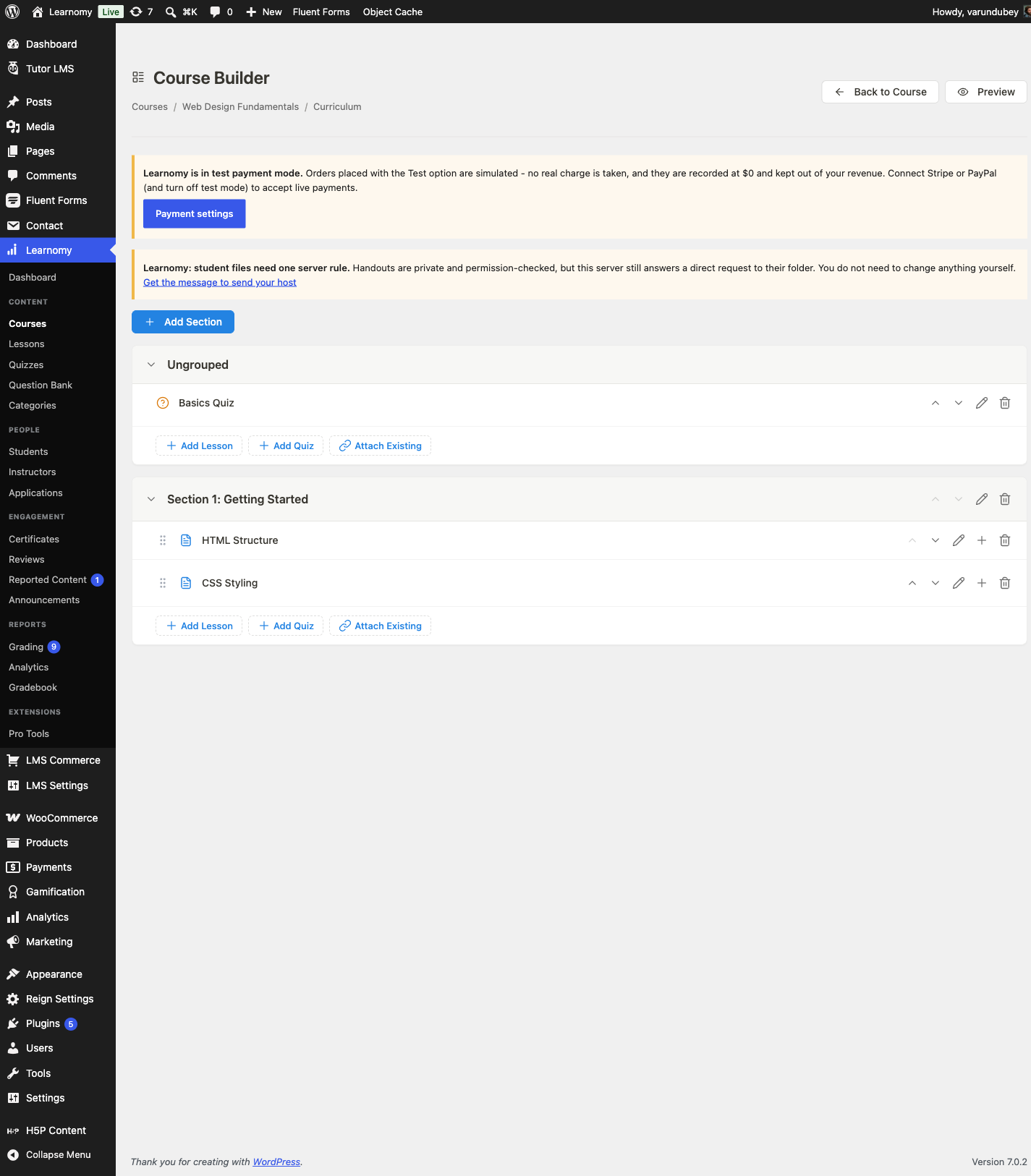
Course Builder showing a migrated course with its section, lessons, and an ungrouped quiz Finish the handful of things the import deliberately leaves for you: pick a Certificate Template per course under Completion & Certificate if you want completions to issue one going forward (see Certificates), set real pricing under Pricing & Access since every migrated course arrives free (see Pricing and Access Models), and re-file any Tutor LMS quiz that landed under "Ungrouped" into its section.
Once your content and your students have arrived, Learnomy is not just a drop-in replacement for what you had. Every other guide in this library starts from a working Learnomy academy exactly like the one this migration just built: selling courses directly, running a membership library, building a private corporate academy, running a certification program with proctored exams, and more. See Use Cases for the full list of archetypes, and pick the one closest to where your academy is headed next.
Verify it works
Before migrating, note one enrolled student's completion state on the source LMS: how many lessons they had completed out of the course total. On the model site this was
tutor_student_1, who had completed both lessons (2 of 2) in "Web Design Fundamentals" on Tutor LMS, a completed status.Run the import with Progress checked, then open Learnomy > Students and find the same student's enrollment in the migrated course. Confirm the progress percentage shown matches: 2 of 2 lessons completed on the source became a 100% progress, completed enrollment in Learnomy, with the same two lessons marked done.
Check a partially-progressed student too.
tutor_student_2had completed only 1 of the same 2 lessons on Tutor. After the same import, their Learnomy enrollment shows 50% progress and an active (not completed) status, matching the fraction of lessons finished on the source exactly.Open the imported quiz and confirm its questions came across with the correct type: a source question type with a direct Learnomy equivalent (true/false, single choice, multiple choice, short answer) imports as that type with no warning; a type with no exact equivalent shows the downgrade the dry run already told you about.
Keep reading
Build this on your own site
Everything above runs on your WordPress server. Start with the free plugin; add Pro when a step here needs it.