
Use case walkthrough
Uses Pro featuresRun a B2B training company with Learnomy
You sell training seats to client companies rather than teaching them yourself. Each client buys a block of access for their team, you provision one Space per client, and the client's own admin runs the day-to-day roster so you are not the helpdesk for every new hire or seat top-up. This is the selling-seats counterpart to running your own staff's private academy; see Run a corporate internal training portal with Learnomy for the mirror scenario where the company trains its own people instead of buying access from you.
What you'll use
Spaces
Spaces →Space Plans (seat count, price, billing cadence)
Spaces →Seat packs
Spaces →Recurring space subscriptions
Spaces →Seat limits and enforcement
Spaces →CSV roster import
Spaces →Pickable-courses search and category bulk-assign
Spaces →The Space Owner dashboard
Spaces →Space Groups and scoped managers
Space Groups →The walkthrough
Phase 1 - Build the product you sell
Go to LMS Commerce > Space Plans and click New plan. Give it a title, a Seats count, and decide how you charge for it:
Your options here:
- One-time Space Plan - set Billing to One-time and a flat Price. The client pays once and keeps the seats you sold them until you or they change something; nothing renews and nothing bills again automatically. Pick this for a fixed engagement with a defined end, such as a single cohort or a one-off compliance push.
- Recurring Space Subscription - set Billing to Monthly or
Yearly. Buying the plan creates a Stripe subscription tied to the
Space; the daily
learnomy_pro_space_subscription_sweepcron detects a past-due or canceled subscription and updates the Space's status to match, the same way Free's own subscriptions expire course access. Pick this for an ongoing retainer relationship, which is what most B2B training accounts are. - Seat packs, added later - a seat pack is not a plan of its own; it is a one-time top-up that only raises an existing Space's seat limit, without touching the base plan's price or billing cadence. Create these separately under the Seat packs tab on the same page. Pick this when a client's headcount grows mid-contract and you do not want to renegotiate the whole plan, only add capacity.
On the model site, Northwind Team Plan is the recurring option: 5 seats, billed Monthly at $299.00, with four of Aurora's professional-development courses pre-assigned so a new Space starts with a working curriculum the moment someone buys it.
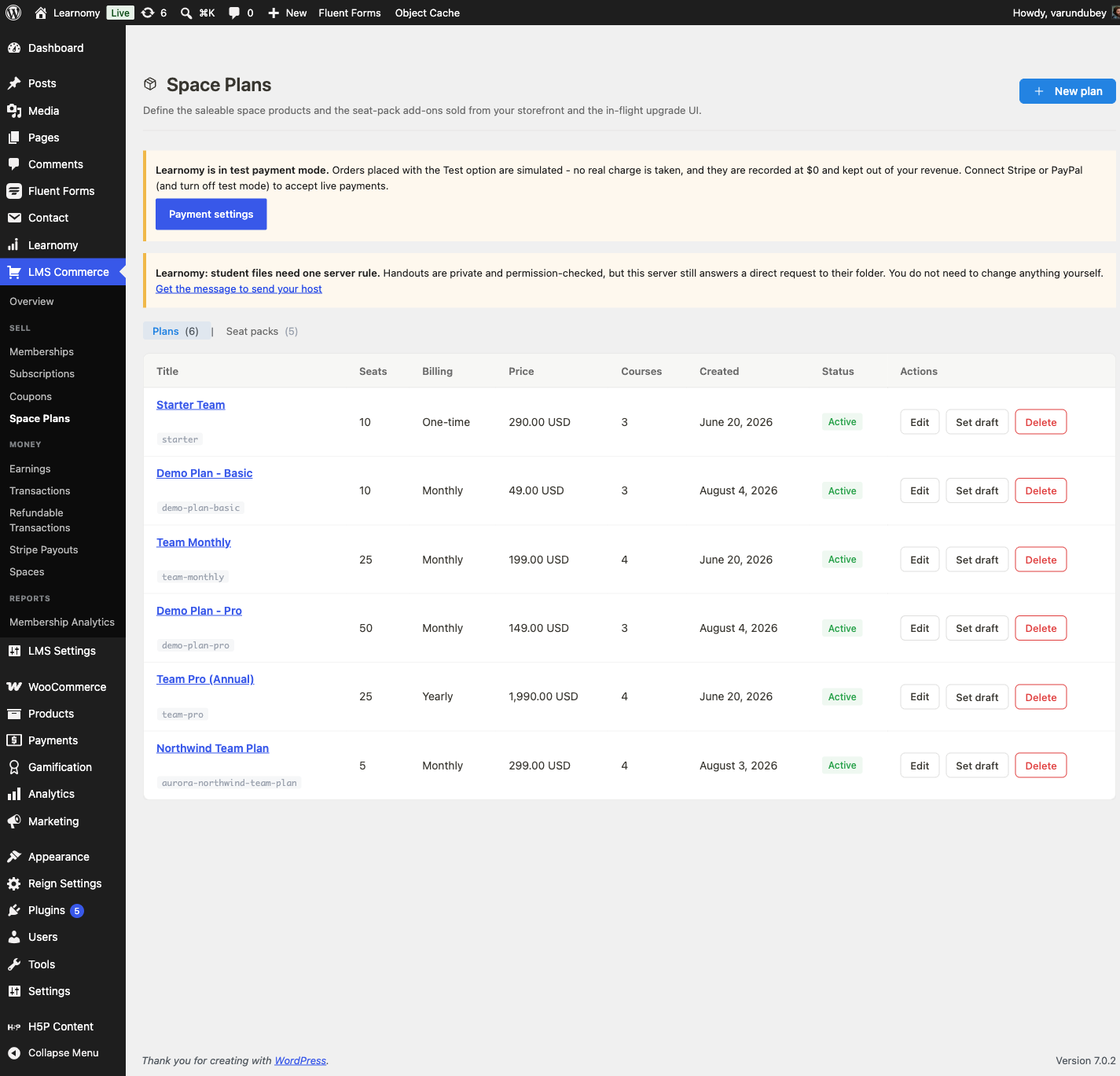
Space Plans admin list, showing the Northwind Team Plan row with its seat count, billing, and price In the same plan editor, use Pre-assigned courses to check every course a brand-new Space should start with. The instant a client buys the plan, Learnomy provisions their Space and auto-assigns those courses, the same auto-enrollment behavior described in Spaces. You are not limited to that starting set: the space's own Courses tab, later in this walkthrough, is where you add more once the client is live.
Phase 2 - Provision the client and decide who runs the roster
When a client buys a plan (or a seat pack on top of one), Learnomy records the purchase and provisions a Space automatically through the same listener a live Stripe checkout fires, so what you see in Learnomy > Pro Tools > Spaces is identical whether the sale went through the real gateway or a purchase you recorded by hand. On the model site, Northwind Partners is owned by Daniel O'Connor and currently sits at capacity: 10 of 10 seats, the owner plus 9 team members. A Space's seat count always includes the owner - a 10-seat Space holds the owner plus 9 team members, not 10 members in addition to the owner.
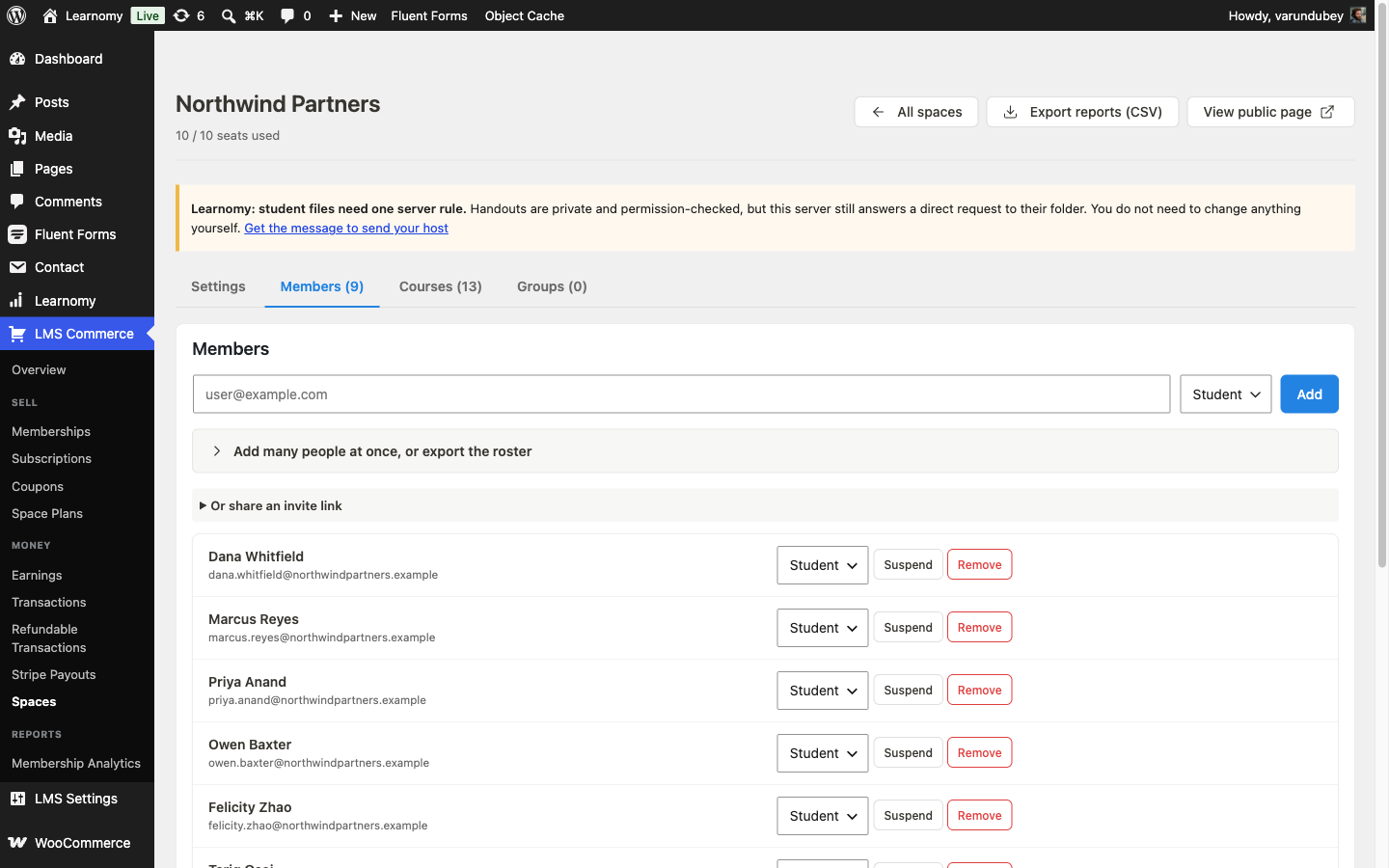
Northwind Partners space detail, Members tab, showing 10 of 10 seats used and the nine-person roster The Spaces list itself shows the recurring plan's billing state in its Subscription column, so you can see which client accounts are active, past due, or canceled without opening each one. Northwind Partners reads Active, Monthly.
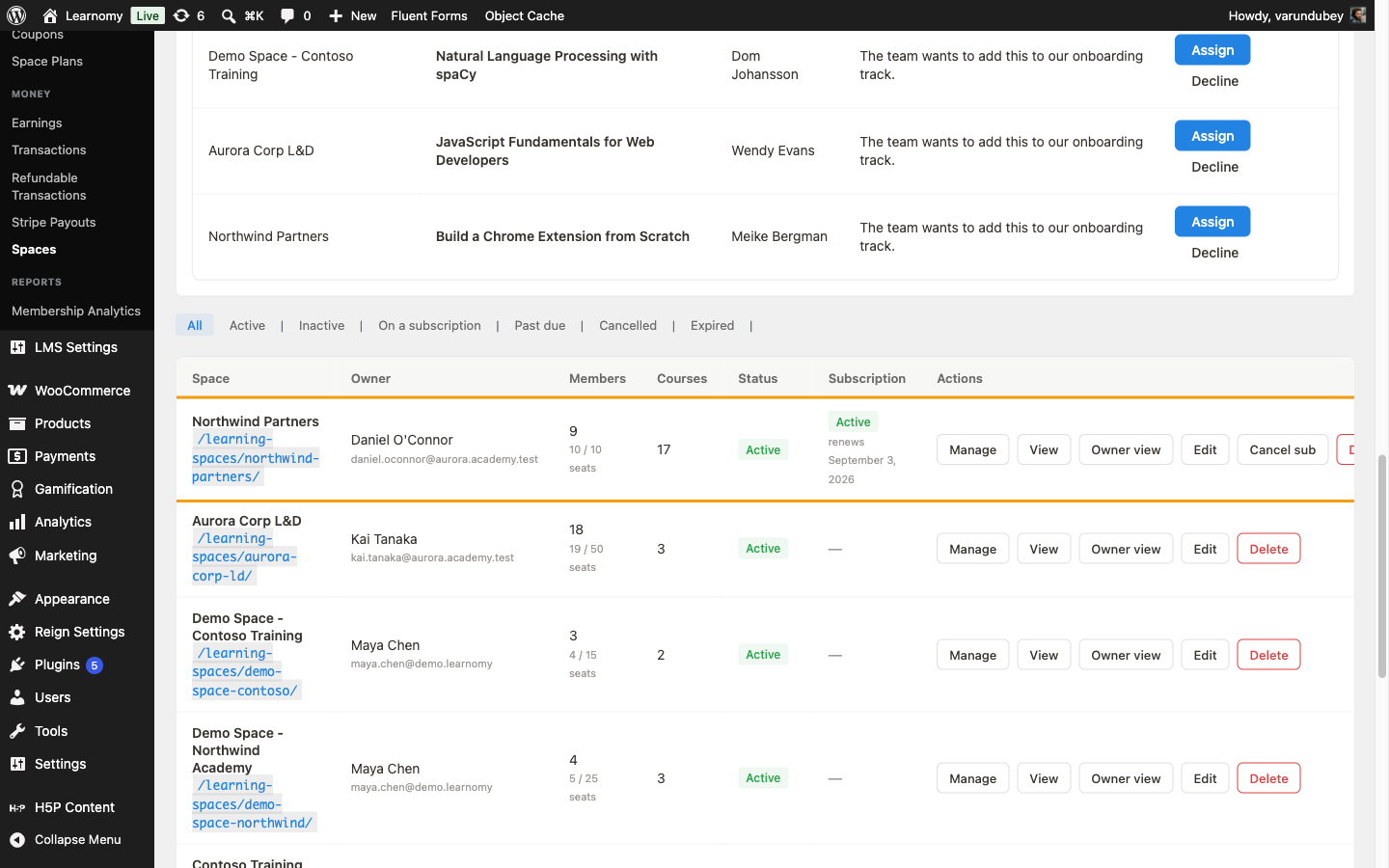
Spaces list, Subscription column, showing Northwind Partners as an active monthly subscription Decide who manages the day-to-day roster:
Your options here:
- You manage it - add, remove, and suspend members yourself from Learnomy > Pro Tools > Spaces > [client] > Members. Right for a client who does not want any login of their own, or during the initial rollout before you hand things over.
- The client's owner and managers self-serve - the Space owner (and
anyone they promote to Manager) runs their own roster from
/learning-spaces/{slug}/manage/without ever touching wp-admin: add and remove members, promote a manager, buy more seats, and request a course. This is the usual B2B pattern, since you do not want to be the one adding every new hire for every client account. A Manager is space-wide by default; scope one to a single department instead with a group-scoped manager, covered in Space Groups.
Northwind Partners uses the second option: Daniel O'Connor runs his own roster from his self-service dashboard, covered in Phase 4 below.
Whichever option you picked, the roster itself fills the same way either surface offers: paste addresses, load a CSV, or share the 7-day invite link. The CSV columns and the name-based-username behavior for new accounts are identical to the corporate scenario; see Spaces for the full mechanics rather than repeating them here. Northwind's nine members
- Dana Whitfield, Marcus Reyes, Priya Anand, and six more - all carry
name-based usernames (
dana.whitfield, not an email-derived string), evidence the roster was loaded from a real CSV rather than pasted addresses.
- Dana Whitfield, Marcus Reyes, Priya Anand, and six more - all carry
name-based usernames (
Phase 3 - Assign the client's courses
Open the Space's Courses tab (wp-admin) or the Courses in this space panel (the owner's self-service dashboard) and decide how each course reaches the client's team:
Your options here:
Hand-pick with the course search - type into Search courses, optionally narrow by Filter by category, and click Assign on each course you want. The search is paginated against your whole catalog, not a fixed first page, so it scales past a few hundred courses. Pick this for a bespoke mix negotiated with one client.
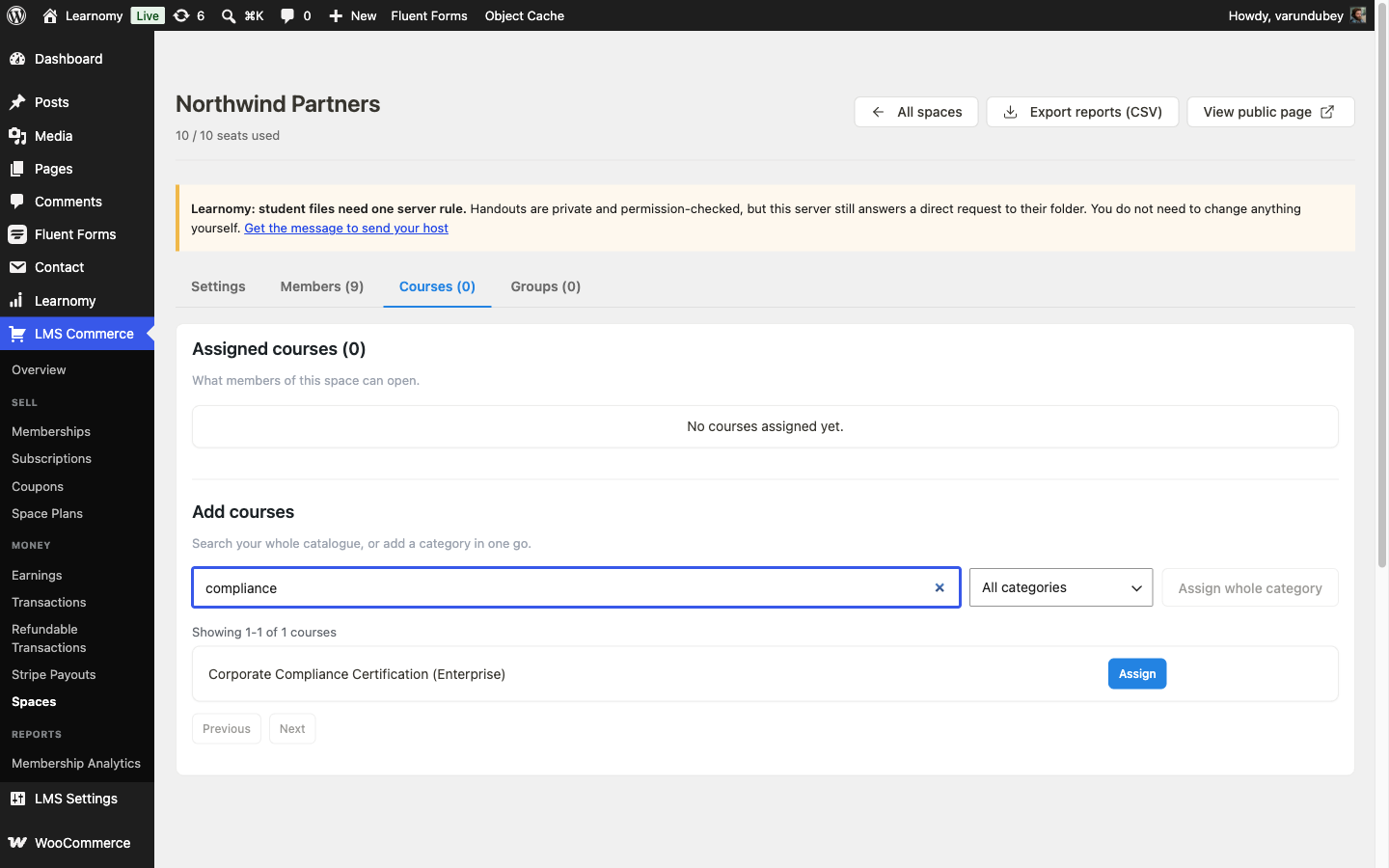
Course search results for "compliance" inside the Add courses panel Assign a whole category at once - pick a category from the dropdown and click Assign whole category. Learnomy asks you to confirm with the caveat stated verbatim (captured here for the "Productivity & Wellness" category): Every published course in "Productivity & Wellness" is added to this space now. Courses added to that category later are NOT added automatically. Run this again to top up. This is a one-time copy, not a live link to the category - a course published into that category next month needs the button clicked again, and courses already in the space are skipped, so re-running it is safe. Pick this to hand a client an entire off-the- shelf track in one click rather than curating course by course.
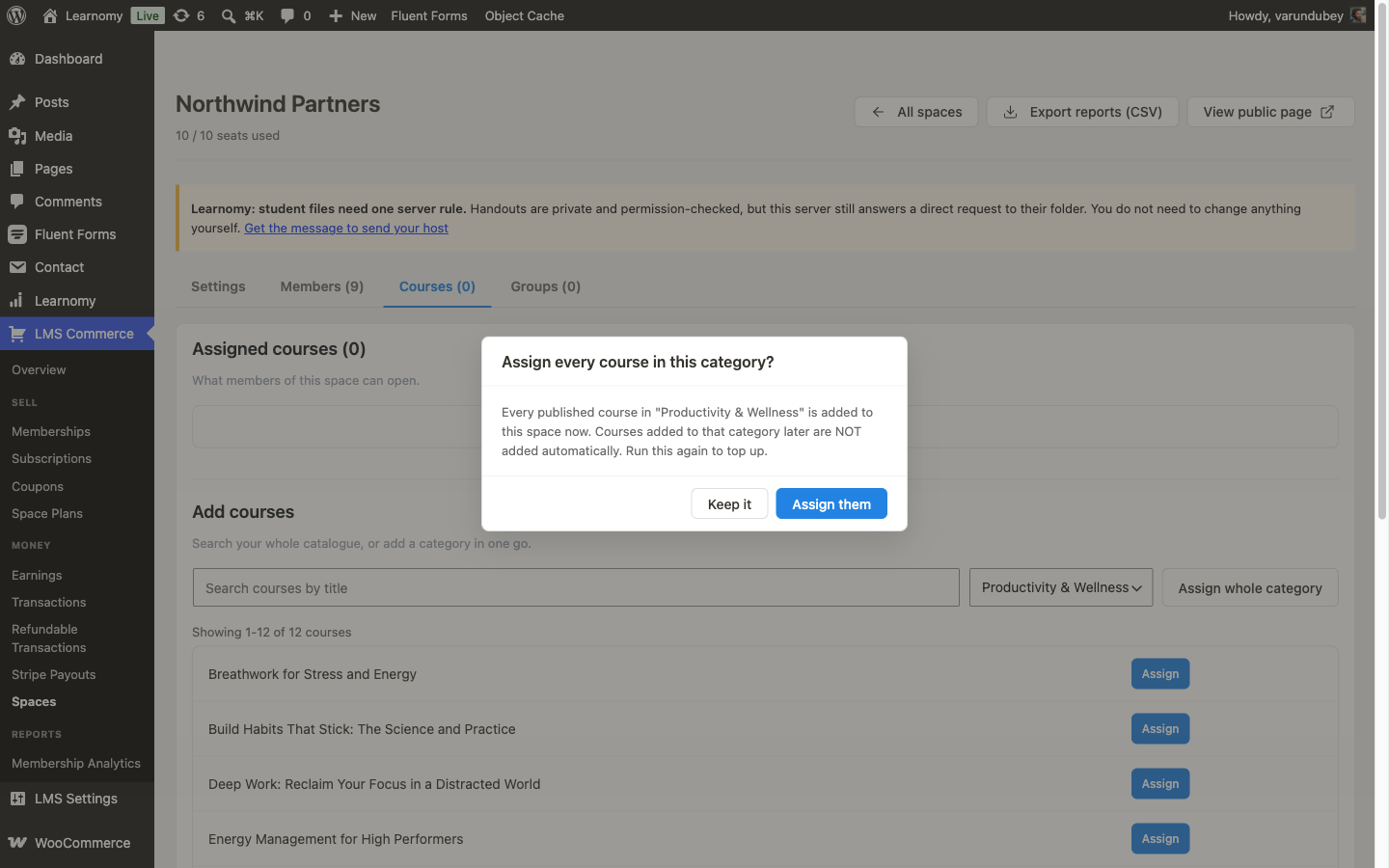
Assign whole category confirmation dialog, showing the one-time-copy caveat for Productivity & Wellness
Northwind Partners mixes both: "Corporate Compliance Certification (Enterprise)" is hand-picked, since it is the specific mandatory course their contract calls for, while the entire "Productivity & Wellness" category (12 courses) is bulk-assigned as a team benefit alongside it - 13 courses in total, every member auto-enrolled in each one the moment it was added.
As with any Space, assigning a course this way controls automatic enrollment, not the course's own front door - a Free or normally-priced course a Space grants is still independently self-enrollable to anyone signed in. Run a corporate internal training portal with Learnomy walks that interaction, and the pricing models that actually lock a course down, in full.
Phase 4 - The client's self-service dashboard
Log in as the Space owner and open
/learning-spaces/{slug}/manage/. This is the same self-service surface described in Spaces: seat usage, billing, KPIs, reports, the member roster, groups, course requests, an invite link generator, and a broadcast tool, all without a wp-admin login.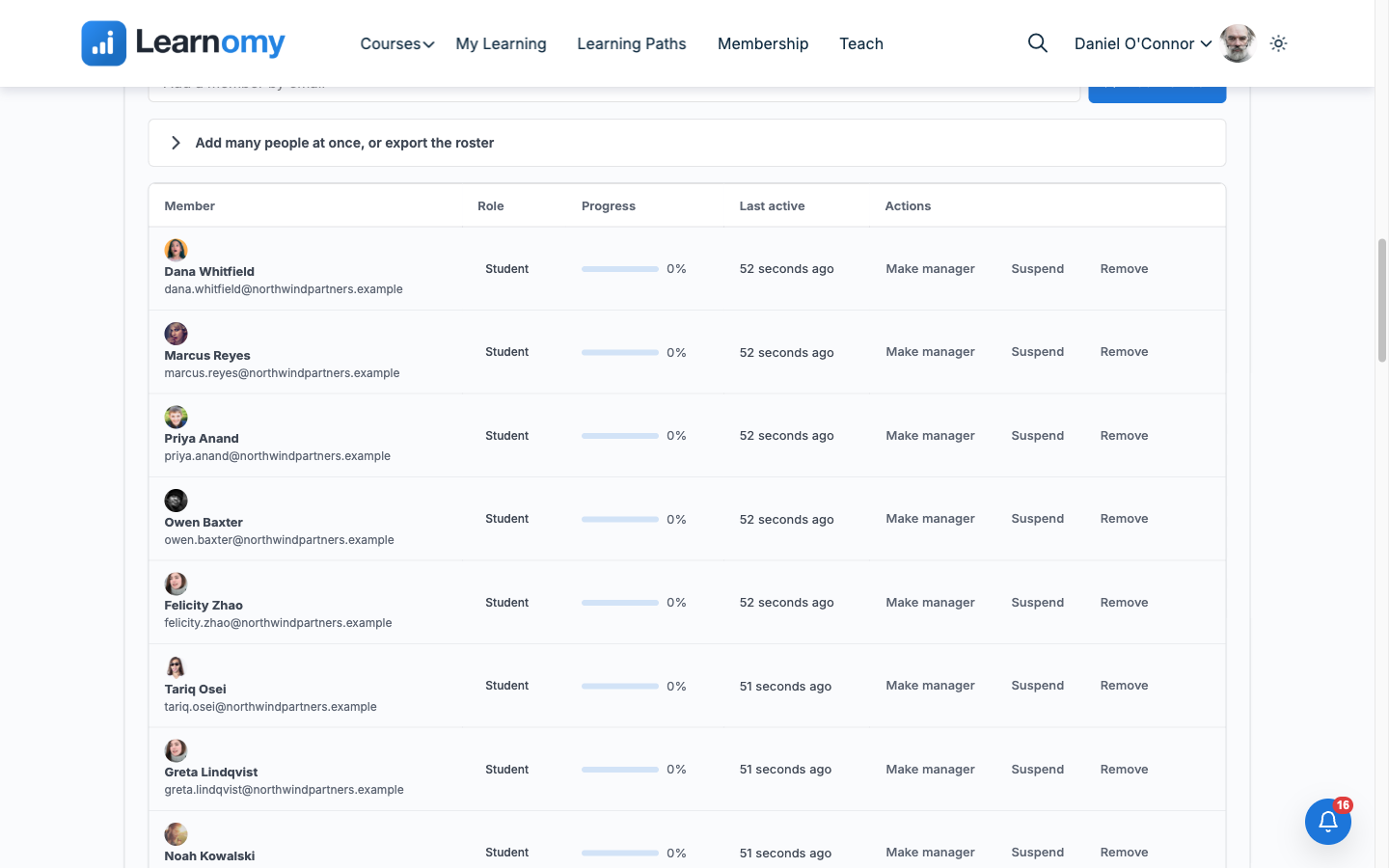
Owner dashboard Members panel, showing the nine-person roster with role, progress, and per-row actions The Add more seats widget on that same dashboard lists every active seat pack you created in Phase 1, with Buy seats completing a real checkout through whichever gateway is enabled - Test while you are building the account, Stripe once you go live. A client who outgrows their plan raises their own limit here without a support ticket to you.
Verify it works
As the admin, open Learnomy > Pro Tools > Spaces > Northwind Partners > Members. The header reads 10 / 10 seats used - the owner plus all nine members - confirming the Space is at capacity before you test anything.
Type a new email into Add and submit. Learnomy refuses it: "All 10 seats are in use (you plus 9 members). Remove a member or invite, or buy more seats." No new row appears and no account is created.
Click Remove on any one member to free a seat (the model site's capture pass used Simone Duval). The header updates to 9 / 10 seats used. Submit the same new email again - it succeeds this time, bringing the count back to 10 / 10.
Submit a second new email at that new full state. Learnomy refuses it the same way it did in step 2, confirming the limit holds at whatever the current seat count is, not just the number the Space started at.
This guide's capture pass then removed the test member it had just added and re-added Simone Duval by email, restoring the model site's exact nine-person roster and its 10 / 10 seat state.
A seat pack raises the limit itself, without touching the roster: Northwind Partners' seat_limit of 10 is the Northwind Team Plan's 5 seats plus one purchase of the 5 Seat Pack (
seed_northwind_seatpack_purchase, $49, transaction #1393 under LMS Commerce > Transactions). Buying a second pack from the owner's Add more seats widget would raise the limit again, by exactly the pack's seat count, the same way this first one did.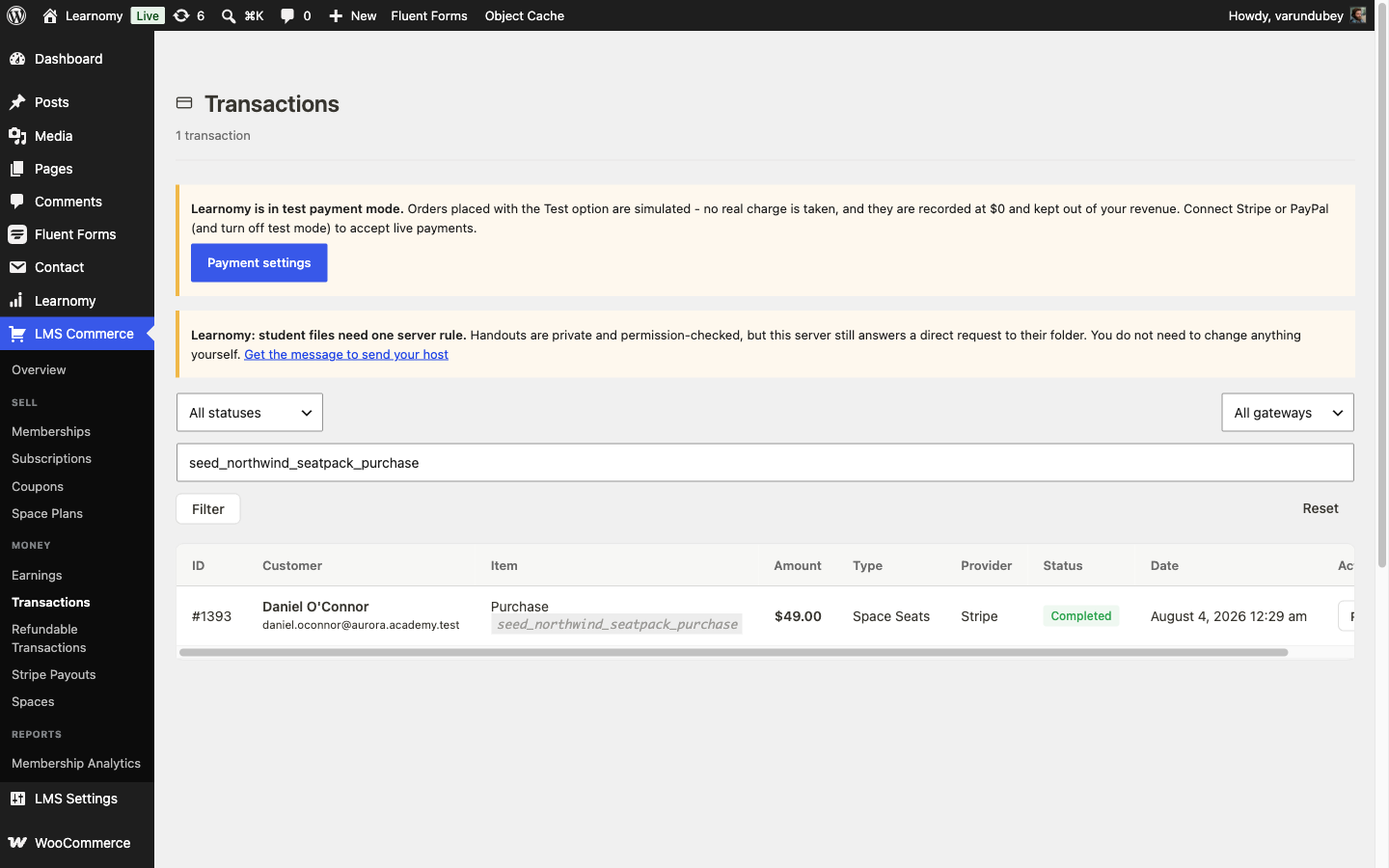
Transactions list filtered to the seat pack purchase, transaction #1393
On the model site this was exercised end to end: adding a member at 10 of 10 seats was refused with the exact seat-limit message, removing a member dropped the Space to 9 of 10 and let the next add through, a second add at the new full state was refused again, and the roster was restored to its original nine members immediately afterward. Northwind Partners ends this guide exactly as it started: 9 members (Dana Whitfield, Marcus Reyes, Priya Anand, Owen Baxter, Felicity Zhao, Tariq Osei, Greta Lindqvist, Noah Kowalski, Simone Duval), a 10-seat limit, an active monthly subscription, and 13 courses assigned (1 hand-picked, 12 from the Productivity & Wellness bulk-assign).
Keep reading
Build this on your own site
Everything above runs on your WordPress server. Start with the free plugin; add Pro when a step here needs it.